


How to Repair Choppy and Jerky Videos Using Three Options
When it comes to handling video-related playback problems, digital videos with choppy and jerky frames are the most common issue. This error has a similar effect to a physical DVD with a lot of scratches or an analog TV with a bad signal. With that in mind, videos afflicted with this playback issue are hard to watch and negatively affect viewing quality. In this article, we will provide three options you can use to repair choppy and jerky videos directly on your computer. We will also discuss the common reasons why this issue occurs.

- GUIDE LIST
- Part 1. Why Videos Become Choppy or Jerky
- Part 2. How to Repair Low Frame Rate or Inconsistent FPS
- Part 3. How to Repair Corrupted Video Files
- Part 4. How to Solve Codec Incompatibility with Media Player
- Part 5. FAQs About Repairing Choppy and Jerky Videos
Part 1. Why Videos Become Choppy or Jerky
Before discussing the solutions for fixing choppy videos, let us first discuss why 4K videos become choppy on PC. With that in mind, we will discuss three of the most common reasons why your digital video’s playback is affected by choppy and jerky effects.
Video Has Low Frame Rate
If your video has choppy playback, but it plays smoothly based on the playbar, you may not be facing any type of error, and your video may only have a low frame rate. Fortunately, this can be solved by increasing the frame rate and quality of your video using an editing tool.
Video Corruption
The more common root cause of choppy playbacks is file corruption. This usually happens from video format conversion, storage crashes, or exporting issues during video editing. This can only be fixed by exclusive video repair tools.
Codec Incompatibility with Media Player
If your video’s codec is not supported by the media player of your choice, the first error that will occur is playback issues, such as having a choppy or jerky video. Fortunately, this can be fixed by simply re-encoding your video or by using a different video player option.
Part 2. How to Repair Low Frame Rate or Inconsistent FPS
If you want to repair low frame rate videos, a format converter software will get the job done. Among the options online, Aiseesoft Video Converter Ultimate effectively repairs choppy and jerky videos through conversion .
Aside from format conversion, the software can also be used to edit the set frame rate of the video you are editing. Additionally, it can also be used to re-encode videos, which will solve any codec-related issues.
To learn more about the program, make sure to read its main features and refer to our three-step guide below to learn the basics of using it.
Main Features:
- • Converts media files into other formats while re-encoding video codecs.
- • Basic editing tools for video trimming, cutting, effects, and simple quality enhancement.
- • Media Metadata Editor for editing the video index.
- • Audio and subtitle tools to enhance the viewer experience.
- • It can read and process 500+ media formats for all multimedia editing tasks.
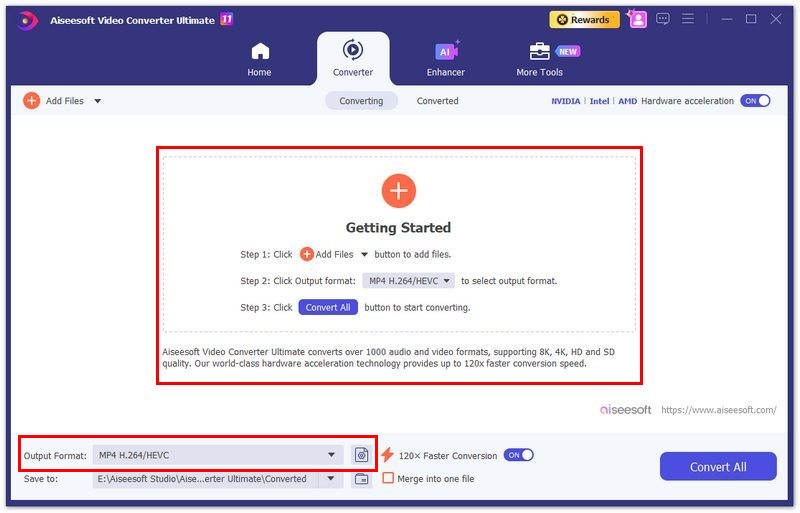
Open Aiseesoft Video Converter Ultimate and select the Add button in the Converter tab to import the video you want to repair. Once your video has been added, select Output Format to choose the format you want to convert your video
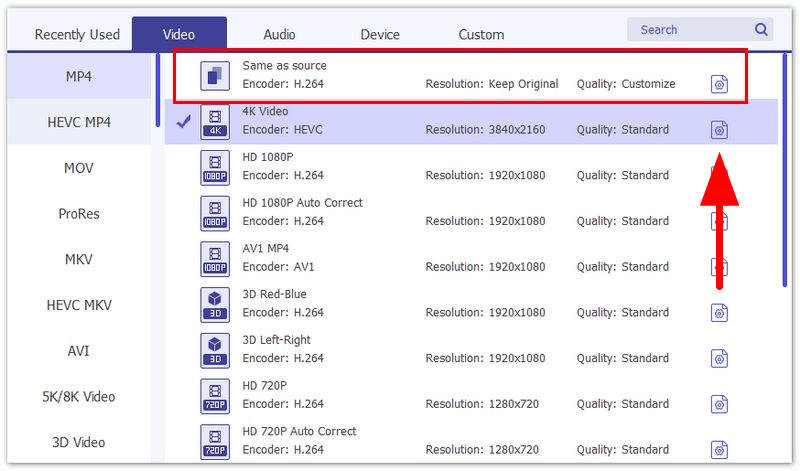
In the Output Format settings, select Profile Settings in the format you selected.
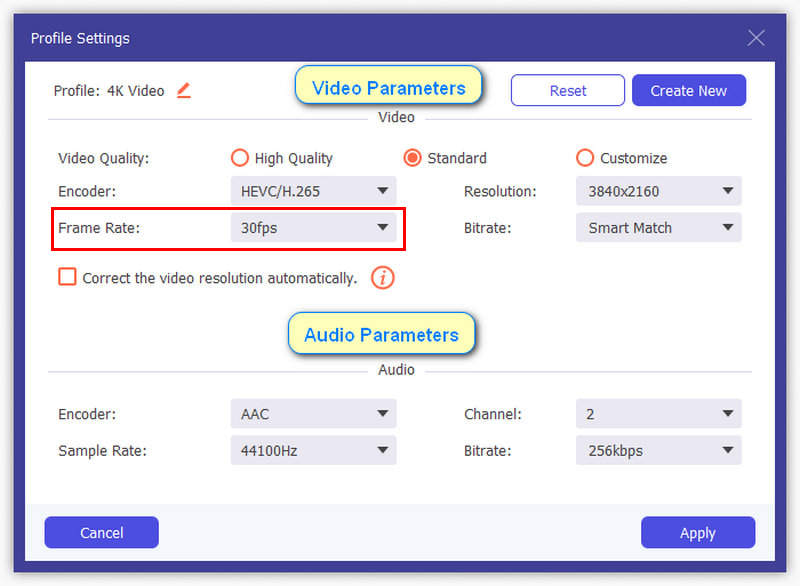
Then, edit the video parameters on the output format you selected. Make sure to adjust the Frame Rate option.
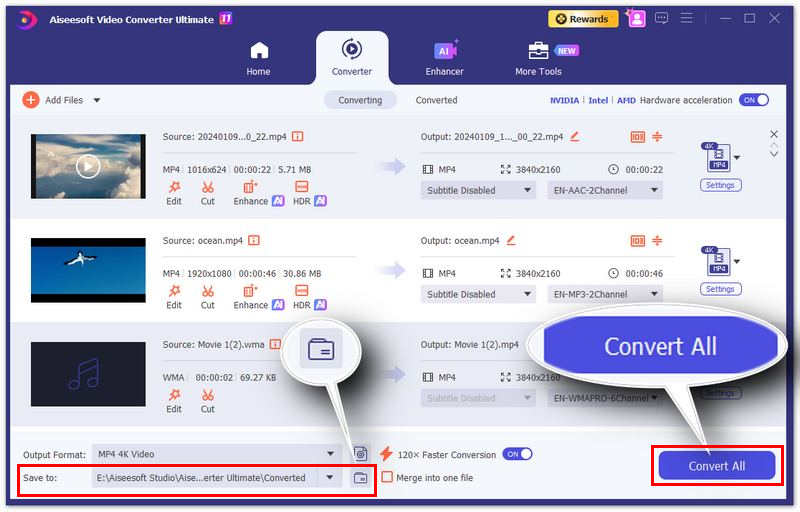
After the Output Format is set, you will go back to the Converter menu. Add the destination where the video will be saved, and then click on Convert All.
For basic codec or encoder issues, Aiseesoft Video Converter Ultimate may be enough. However, if you are facing major file corruptions, you should consider using the next option in this article.
Part 3. How to Repair Corrupted Video Files
For more severe video corruption issues, a dedicated video repair file is a better tool. As such, ArkThinker Video Repair should be one of your top considerations, especially if you are facing video corruption caused by failed format conversion, storage corruption, exporting issues, and a poor transfer signal.
Although it may sound complicated, ArkThinker Video Repair works as an automated video repair tool. It can fix videos facing file corruption using only a sample video, and the AI-supported system of the program handles the main repair work.
To have a better idea of how well the software functions for major file corruptions, make sure to read its main features below. Do not forget to read our guide on how to use it to make your video repair experience smoother.
Main Features:
- • Beginner-friendly interface design made for newbies.
- • Automated video repair process supported by AI.
- • It can fix severe video corruption from failed format conversion, hard drive crashes, export issues, file transfer issues, and more.
- • Repairs video files three times faster than other media repair tools.
- • Videos repaired by the program will retain their original quality.
Do not forget to download the software first for an easier time using it.
Open ArkThinker Video Repair, and select the Add button in the Orange Box to import the corrupted video you want to repair.
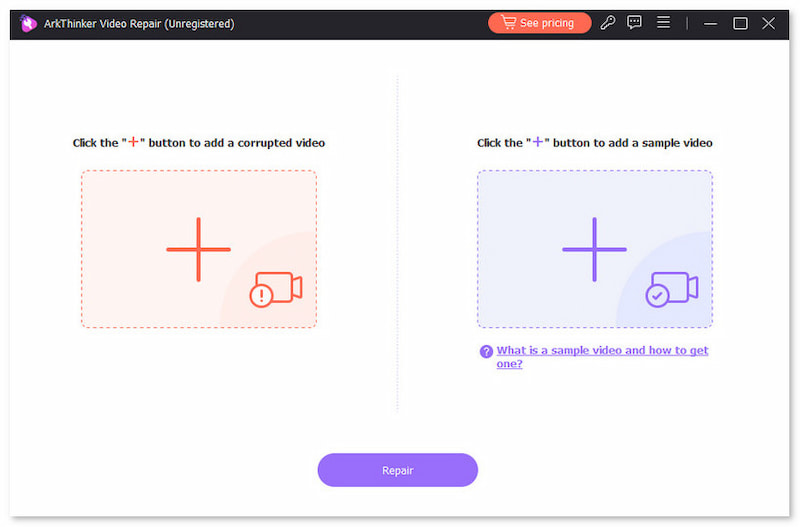
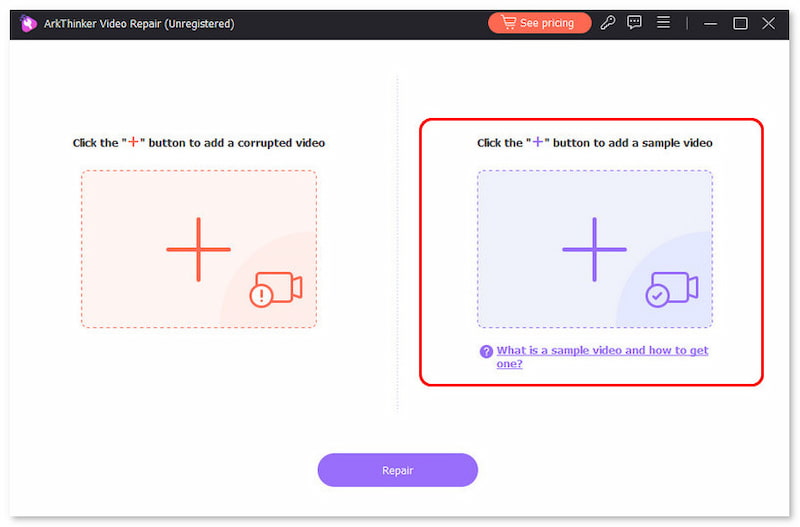
Next, select the Add button in the Purple Box to import the sample video, which will be used as a reference file during the repair process. The sample video should use the same format as the video file you want to repair.
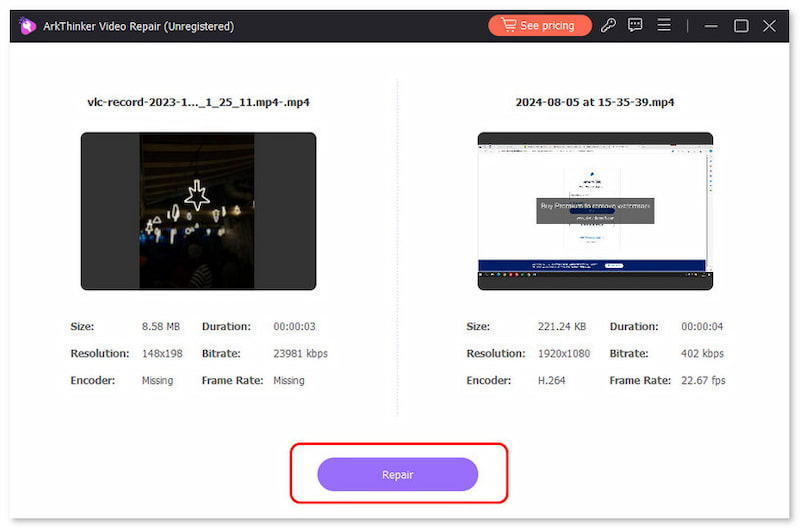
With both the corrupted video and the sample video now added into the tool, click Repair to begin fixing your choppy video.
When the video repair process is complete, click Preview to watch the repaired media file and to check whether it plays smoothly. Finally, click on Save to import the repaired video file on your computer.
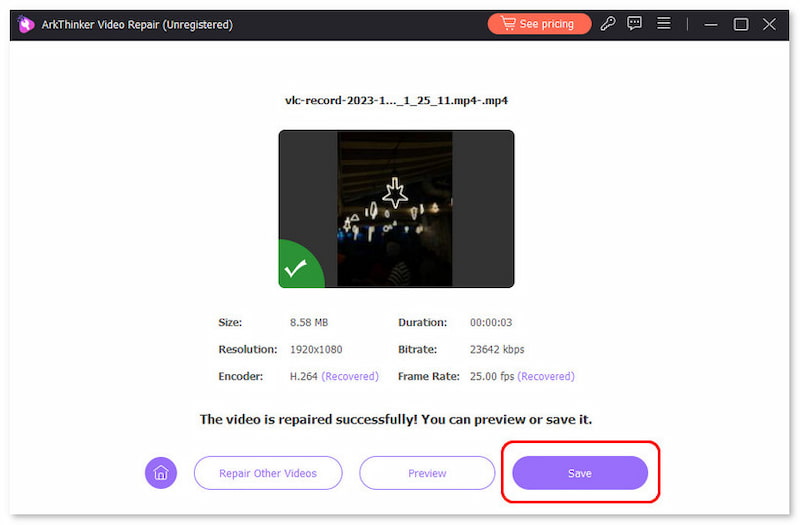
Using three simple steps and a reference video, you can now fix your broken media files regardless of the source of the issue. This makes the program a highly competent option for handling both simple and severe video issues.
Part 4. How to Solve Codec Incompatibility with Media Player
If you are lucky, your video being choppy and jerky may only be caused by an incompatible media player, such as an audio-video sync error when using Windows Media Player. With that in mind, a more advanced option will solve your issues, and Aiseesoft Blu-ray Player is a good pick.
As its name suggests, it is originally a Blu-ray and DVD player software, but it can also handle digital videos. Due to this background, the program was equipped with advanced video codecs, making it function normally when playing videos with advanced codecs and UHD quality.
Main Features:
- • It can play Blu-ray and DVD media from your computer.
- • It can also play digital ISO files extracted from DVDs.
- • Offers wide-format support for digital videos such as MP4, MKV, AVI, FLV, and MOV.
- • It can play videos with lossless audio quality for an improved viewer experience.
- • Improved video playback controls for audio tracks and subtitles.
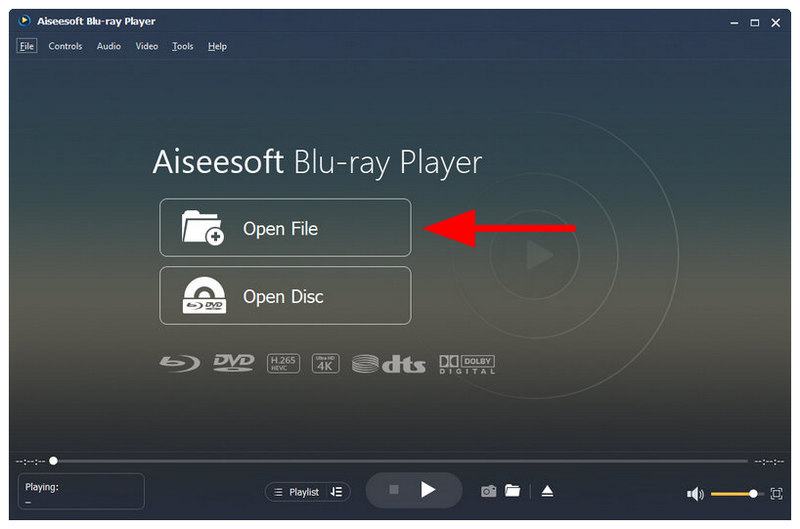
Select Open File in Aiseesoft Blu-ray Player’s main menu.
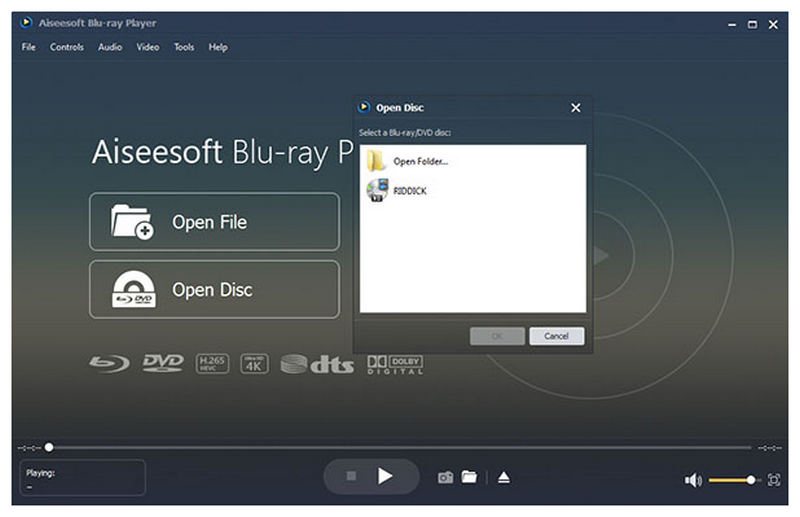
Locate the video you want to watch among your files.
Watch your video without any playback issues.
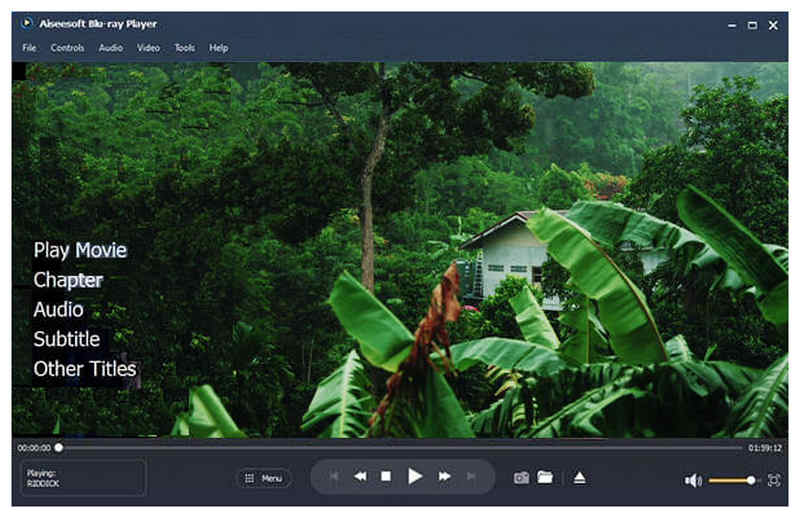
If your video file has no traces of corruption, it will start playing normally.
Part 5. FAQs About Repairing Choppy and Jerky Videos
Can AirPlay fix choppy videos?
It depends on what causes the video error. If it's only a codec-related or player incompatibility, AirPlay may fix it. However, corrupted videos cannot be played on AirPlay.
Can I use Apple TV to repair 4k choppy videos?
No, you cannot. Apple TV can only play 4K videos. Repairing is another function altogether.
Why do videos become choppy?
It is usually a form of video corruption. Alternatively, it may come from your video player not supporting your file. Another possible reason is minor problems such as codec-related issues.
Are videos with playback errors corrupted?
It may be, but is it not always the case. Some playback issues may not be rooted in corruption. It could be caused by your video player or simple problems such as codec issues.
Why does my video file look broken?
You may be facing playback problems. This may be caused by multiple sources. The most common is file corruption, an unsupported codec, or an unsupported player.
Conclusion
With some of the best tools to fix choppy videos now discussed, we hope that you will now be able to select which among them is best for you. To ensure the quality of the videos you will repair, we highly recommend using ArkThinker Video Repair, which you can download using the link below.
What do you think of this post? Click to rate this post.
Excellent
Rating: 4.9 / 5 (based on 699 votes)


