


Full Review of Coolmuster HEIC Converter: Is It Worth It
Are you having trouble choosing which paid HEIC converter tool is worth spending your money on? This article aims to help you resolve this issue by providing a detailed review of the features, performance, pricing, and safety of Coolmuster HEIC Converter. The information we will provide will include the software’s UI design, its reliability, and whether the program is worth using over other paid tools or web-based freeware.

- GUIDE LIST
- Part 1. Coolmuster HEIC Converter: Features & Performance
- Part 2. Is Coolmuster Free
- Part 3. Is Coolmuster Safe
- Part 4. How to Use Coolmuster HEIC Converter
- Part 5. Best Alternative to Coolmuster HEIC Converter
- Part 6. FAQs About Coolmuster HEIC Converter
How We Test and Review
- • We downloaded the free trial version of the tool to assess its conversion speed, quality retention, and general performance.
- • The HEIC conversion testing process was done in a Windows laptop equipped with an AMD Ryzen 5 processor and 16GB of RAM.
- • We converted a small batch of HEIC images using the tool to assess its performance for batch processing.
- • The processed images we selected for batch conversion average 1.5 MB in size.
- • For a thorough performance assessment, we ensured that only Coolmuster HEIC Converter was running on the laptop we are using during the review process.
Part 1. Coolmuster HEIC Converter: Features & Performance
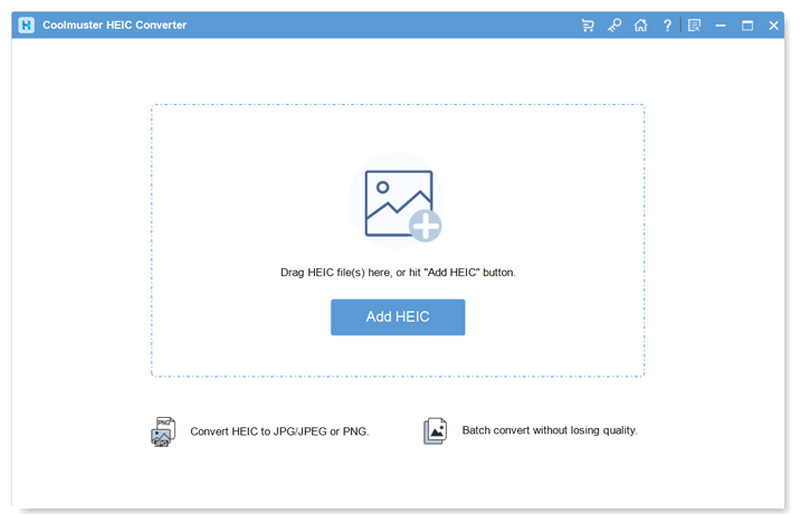
To start our review, we have outlined some of the program’s most notable features and performance capabilities to help readers understand what makes it a reliable format converter.
Coolmuster HEIC Converter Main Features
- • Built-in HEIC viewer.
- • Batch file removal or add file feature.
- • Adjustable converted output quality.
- • EXIF data retention for metadata preservation.
- • Works completely offline since it operates within your local storage.
Coolmuster HEIC Converter Performance
- • Smooth installation process without any adware or malware packages in the setup file.
- • Offers an image Preview feature before conversion to give its users an overview of how the converted JPG file looks.
- • The free version of the tool only supports batch conversion for up to 3 images at a time.
- • Offers 100% output quality for lossless image conversion.
- • Works well on dated or entry-level computers, as it has a low system requirement of only 512MB of RAM.
Among the software’s main features, the most notable is adjustable output quality, which lets users choose between a compact image and a lossless quality image that preserves the HEIC file’s original quality.
On the other hand, users who are concerned about performance issues should not be discouraged from choosing the program, as it has extremely low system requirements of only 512MB of RAM to run properly.
With the program’s most notable features and performance now discussed, let us proceed to the pricing plans of the Coolmuster HEIC Converter.
Part 2. Is Coolmuster Free
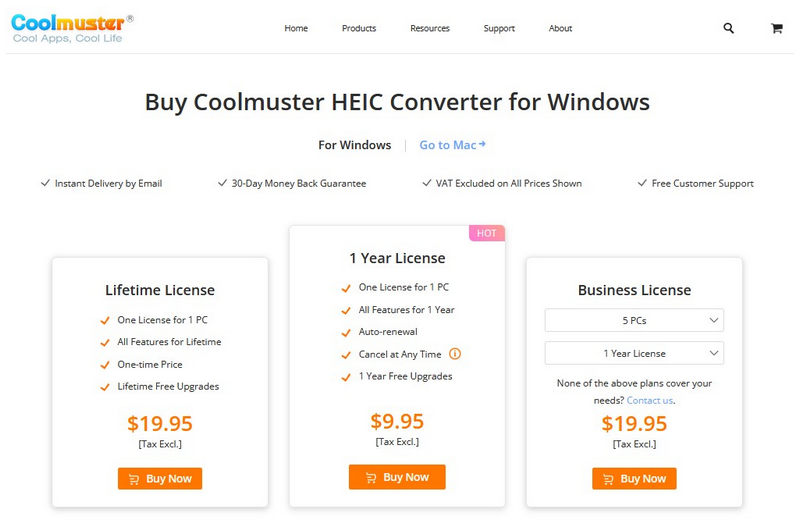
Unfortunately, Coolmuster HEIC Converter is a paid software. It only offers a free trial version. The most notable being the three-file limit when using the tool for batch conversion.
If you plan to use Coolmuster’s premium plans, you have three different options: Lifetime License, 1 Year License, or Business License. If you choose the one-time payment option, you have to pay $19.95. For annual subscriptions, it is $9.95. Finally, the business license costs $19.95 to $39.95.
With the software's versatile paid options, Coolmuster offers a suitable plan based on users' needs.
Part 3. Is Coolmuster Safe
Yes, Coolmuster HEIC Converter is safe to use, as it was designed to work offline. As such, the risk of cloud storage breach was fully eliminated. This made the program a good choice for security-sensitive users or those who want to convert their images privately.
Part 4. How to Use Coolmuster HEIC Converter
To learn how to use Coolmuster HEIC Converter, make sure to read our three-step guide on using the tool. This step-by-step tutorial was designed to be as simple as possible and optimized for beginners.
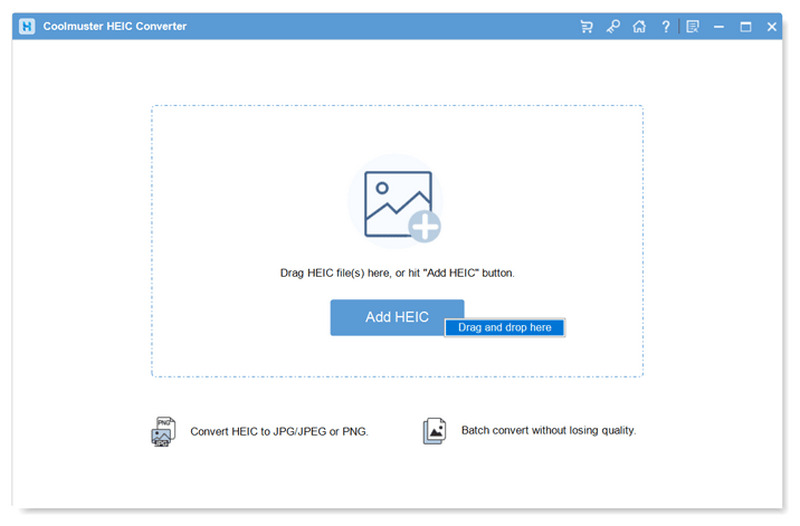
Open Coolmuster HEIC Converter and then click the Add HEIC button in the main interface. You may also drag and drop multiple images to the upload box for batch processing.
Once the HEIC files you want to convert have been added, select the Output Format option and select the format you want to save your image into.
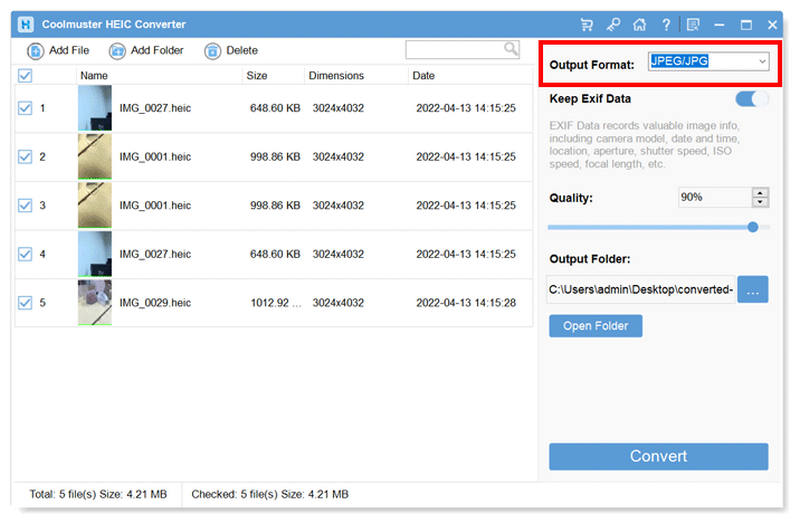
With the Output Format now set, click on Convert to begin the file conversion process. Once at least one HEIC image file has been converted, you may click Show in Folder to open the folder where the converted JPGs are saved.
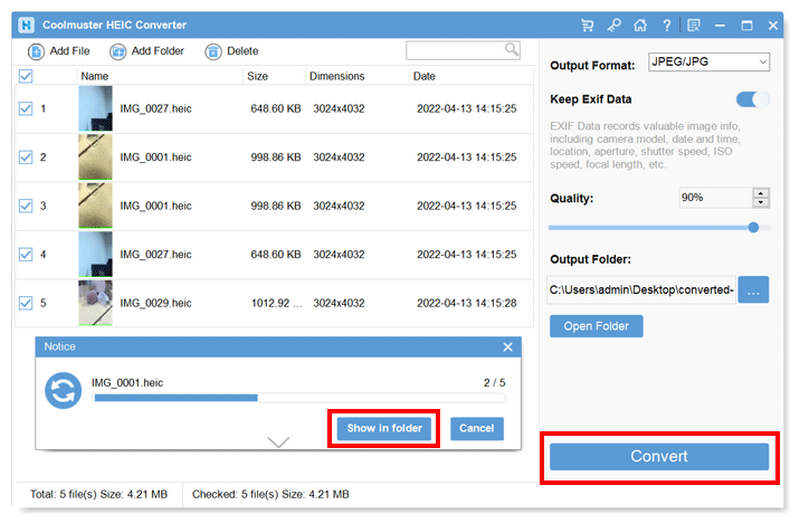
By following three simple steps, you can now start converting HEIC images in Coolmuster HEIC Converter. However, remember that the trial version of the tool only allows batch conversion of up to 3 files at once.
Part 5. Best Alternative to Coolmuster HEIC Converter
Now that we have discussed and reviewed the features, performance, pricing plans, and safety standards of Coolmuster HEIC Converter, let us proceed to the best web-based freeware alternative: ArkThinker Free HEIC Converter Online.
Unlike paid HEIC converter tools, this online-based alternative is designed for quick, hassle-free HEIC conversion without installation or setup. ArkThinker Free HEIC Converter Online works by automatically processing images as they are uploaded, creating a smooth, efficient workflow.
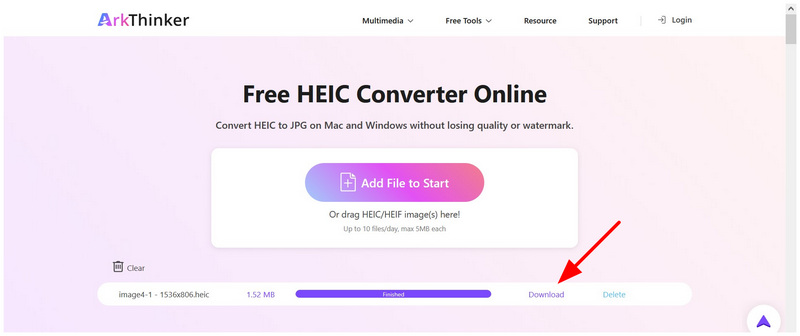
Once the HEIC file you want to convert has been uploaded, the conversion will be complete within a few seconds, and the JPG file can be instantly imported to your local storage via a download button. This straightforward process that automatically converts uploaded HEIC images makes the web-based tool easier to use than any paid HEIC converters.
If you want to learn how to use ArkThinker Free HEIC Converter Online, check out our simple guide below, which walks you through the process in just two easy steps.
Go to ArkThinker HEIC Converter’s website, then select the Add Files to Start button to begin importing the HEIC images you want to convert to the online tool. For batch conversion, you may drag and drop up to 10 images at once to the upload box.
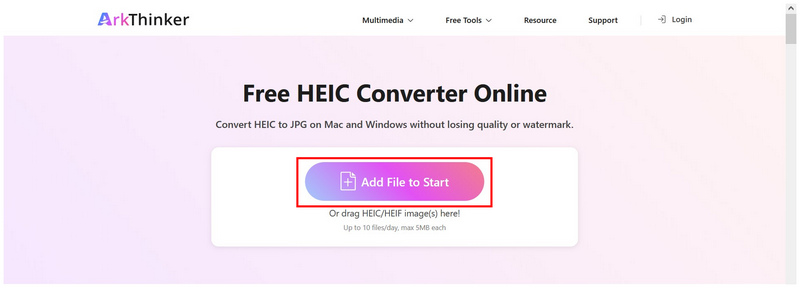
Simply wait for the HEIC files to be added to the online tool, then wait for a few seconds for the conversion to finish. Once done, select the Download button to save the converted HEIC image (now saved as JPG) back to your device.
If you’re looking for a freeware tool that emphasizes simplicity, accessibility, and cross-platform convenience, ArkThinker Free HEIC Converter Online is an excellent option. Unlike paid desktop tools like Coolmuster HEIC Converter, it runs entirely in your browser, making it as simple as possible to convert HEIC images, regardless of the operating system or device you are using.
Part 6. FAQs About Coolmuster HEIC Converter
Can I use Coolmuster HEIC Converter to convert multiple HEIC files at once?
Yes, you can. Coolmuster HEIC Converter offers batch conversion. However, their free version can only convert up to three files at once.
Will the quality of converted HEIC images be reduced?
Yes, they will. Converting HEIC will naturally reduce its original quality. However, the severity of the quality reduction may be controlled using your converter tool.
Is JPG a good format to convert images into?
Yes, it is. JPG is a good option due to its wide compatibility. It is also compact and perfect for storage.
What is a good freeware for HEIC conversion?
Online image converter tools are the best in terms of freeware programs. One good example is ArkThinker Free HEIC Converter Online. It is also way easier to use than desktop-based programs.
Can I use PNG as an output format for HEIC conversion?
Yes, it is. PNG has overall better quality than the standard JPG. It also has its own niche since PNG supports transparent images.
Conclusion
Now that we have reviewed the features, performance, pricing plans, and overall safety of using Coolmuster HEIC Converter, we hope this article will help you decide whether the software is worth using compared to other paid options. However, if you want to get started with freeware, consider using ArkThinker Free HEIC Converter Online.
What do you think of this post? Click to rate this post.
Excellent
Rating: 4.8 / 5 (based on 497 votes)


