


Real HEIC to JPG Converter Review: Main Features, Pros, Cons
Natively, HEIC images cannot be opened on the built-in Photos app of modern Windows computers; this made format conversion an essential step to view these files on a PC. As such, the first step most users take is to check for verified options in the official Microsoft Store app to search for optimized software for Windows. Among these tools, Real HEIC to JPG Converter will be one of the first choices to appear. In this article, we will provide a comprehensive review of the tool, covering its features, batch processing capabilities, and pros & cons, to determine whether it is reliable enough for HEIC image conversion.

- GUIDE LIST
- Part 1. Full Review of Real HEIC to JPG Converter
- Part 2. Does It Support Batch Processing
- Part 3. Real HEIC to JPG Converter : Pros & Cons
- Part 4. How It Works (User Flow)
- Part 5. Best Alternative to Real HEIC to JPG Converter
- Part 6. FAQs About Real HEIC to JPG Converter
How We Tested Real HEIC to JPG Converter
- • We downloaded Real HEIC to JPG Converter from the Microsoft Store.
- • To test the batch conversion feature, we processed four HEIC images.
- • The time it took to batch-convert the HEIC files was measured.
- • The quality of the original HEIC file and the converted JPG was compared side-by-side.
- • We compared the quality of images converted with the High Compression and Low Compression settings.
Part 1. Full Review of Real HEIC to JPG Converter
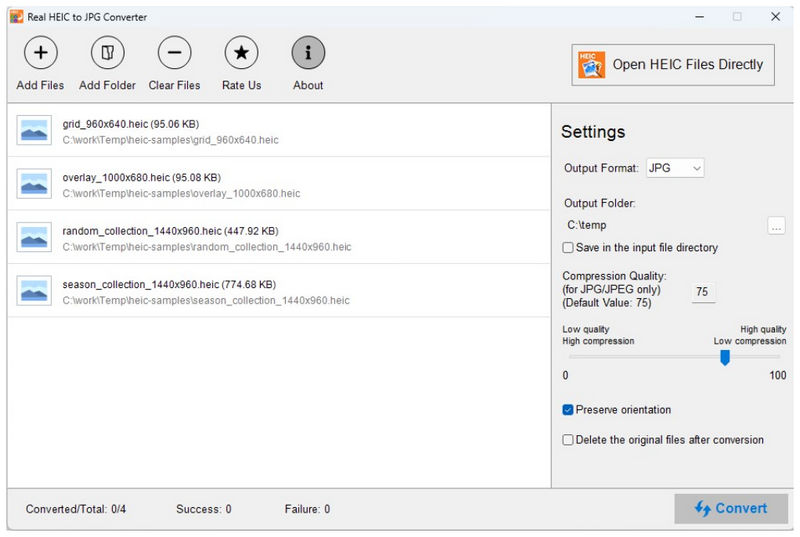
To get started with the software, we provided a detailed list of its most notable features that made it one of the most reliable HEIC format converter tools in the Microsoft Store. Simply put, the program has stood out because it is free to use and performs well compared to paid software.
Among its features, its well-designed interface made it a solid option for users of different skill levels. For beginners, the well-labeled buttons made the program intuitive to use. However, for experienced editors, advanced factors such as metadata preservation and customizable compression rate are good additions.
To learn more about the features and advantages of using Real HEIC to JPG Converter as a free, downloadable image converter, make sure to continue reading the main features below, along with our reviewer rating.
Real HEIC to JPG Converter Main Features
- • Well-designed interface for ease of use and a zero-learning-curve.
- • Convert HEIC images to JPG, PNG, or BMP format.
- • Maintains the original quality of the converted HEIC files.
- • Preserves the original metadata of converted HEIC files.
- • Processes format conversion locally and fully offline.
Reviewer Rating: 4/5 Stars ⭐⭐⭐⭐
Part 2. Does It Support Batch Processing
Yes, it does. Real HEIC to JPG Converter and file viewer can process multiple files at once. It was designed to batch-process up to 1000+ files at once and convert images to JPG, PNG, or BMP. This made the software an ideal solution if you want to batch-convert images from an iOS device or from downloaded images in iCloud.
Part 3. Real HEIC to JPG Converter : Pros & Cons
To learn more about the strengths and limitations of Real HEIC to JPG Converter, we have provided the most significant pros and cons of the software. These will provide you with a rough idea of the general capabilities of the program.
- Fast bulk conversion speed.
- Simple three-step workflow (Add File > Convert > Save).
- Operates on local storage for user privacy and security.
- Converted HEIC images retain their original quality.
- Adjustable compression rate for easy quality adjustment.
- Require installation and initial setup.
- No image editing tools.
- Performance declines during a large-batch conversion.
- Limited output format options.
- Only available on Windows computers.
Part 4. How It Works (User Flow)
To learn how to use Real HEIC to JPG Converter, make sure to read our quick three-step guide on how to use it.
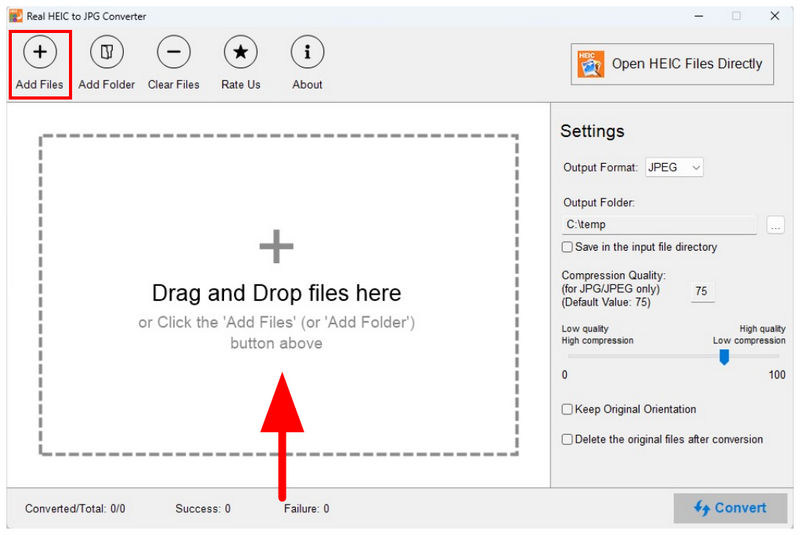
Open Real HEIC to JPG Converter. In the tool’s main window, select the Add Files button or drag-and-drop the files into the Upload Box.
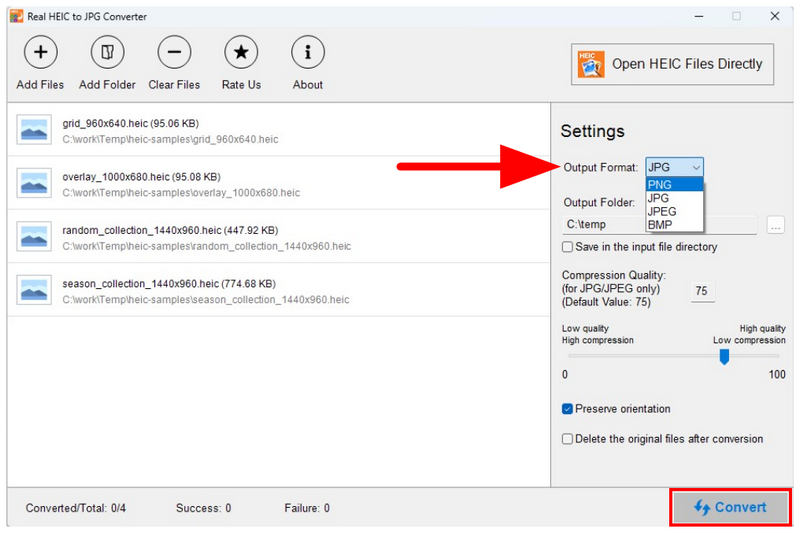
With the images now added to the HEIC converter tab, select Output Format among JPG, PNG, or BMP. Then, click on Convert to begin the process.
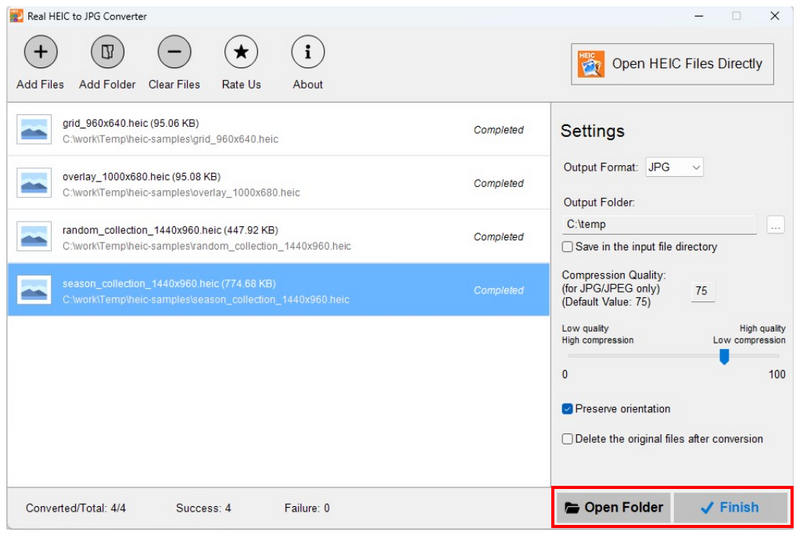
Once the conversion is complete, you may select Finish to finalize it. To open the destination folder for your converted files, select Open Folder.
If you want to bypass installation or file setup, or if you are looking for an image converter tool that is even easier to use than Real HEIC to JPG Converter, please read the next section of the article, which features a web-based solution for image format adjustments.
Part 5. Best Alternative to Real HEIC to JPG Converter
Now that we’ve covered the main features, batch processing capabilities, pros, cons, and steps for using Real HEIC to JPG Converter, it becomes clear why many users are turning to a more flexible web-based option, such as ArkThinker Free HEIC Converter Online.
Compared to traditional desktop tools, ArkThinker immediately stands out for its convenience. While Real HEIC to JPG Converter requires setup and system compatibility checks, ArkThinker removes those barriers entirely, running directly as a web-based solution without installation.
ArkThinker also delivers a smoother, more efficient workflow by automatically processing your images as soon as they are uploaded. In just a few seconds, your HEIC files are converted to JPG and ready for download. This streamlined process makes the alternative noticeably easier to use than desktop-based solutions, without requiring any technical steps.
If you want to get started with ArkThinker Free HEIC Converter Online, make sure to read our two-step guide on using one of the easiest image format converter tools today.
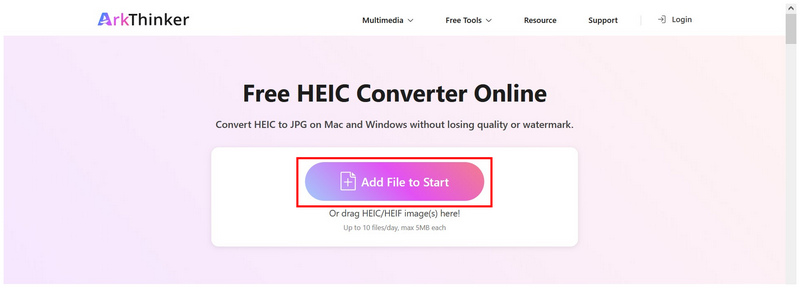
Open ArkThinker Free HEIC Converter’s website, and click on the Add Files to Start button to add the HEIC images. You may also upload HEIC photos by dragging and dropping up to 10 files at once to the highlighted upload box.
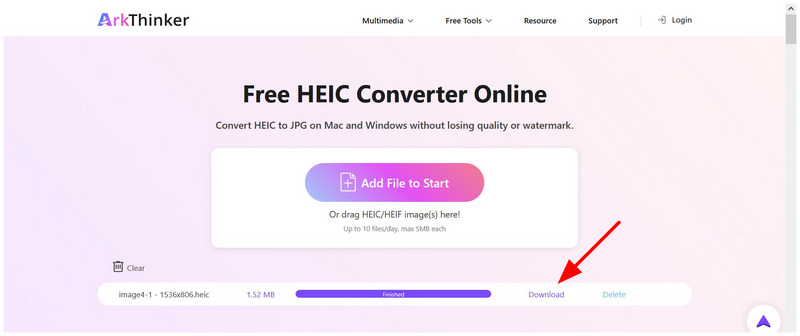
Once the HEIC files have been uploaded to the online tool. It will be automatically converted to the JPG format. Wait for the conversion to finish, then select the Download button to save the JPG back to your device’s storage.
Overall, if your priority is speed, ease of use, and universal accessibility, ArkThinker Free HEIC Converter Online is the better choice. Unlike Real HEIC to JPG Converter, which requires installation and setup, web-based tools work seamlessly across all devices and operating systems, offering a more modern and hassle-free way to convert HEIC images.
Part 6. FAQs About Real HEIC to JPG Converter
Are there good HEIC converters on the Microsoft Store?
Yes, there are. One good example is Real HEIC to JPG Converter. It is free to use, offers batch conversion, and is designed to be easy to use.
Is Real HEIC to JPG Converter safe to use?
Yes, it is. Real HEC to JPG Converter is safe to use, according to its review on the Microsoft Store. It has a high rating, and an overwhelming majority of its users rated it 5 stars.
Are apps from the Microsoft Store all safe to use?
Most of the apps from the Microsoft Store are safe to use. However, not all of them are. There are a few clone apps in the Store designed to confuse unfamiliar users.
Should I use online tools for HEIC-to-JPG conversion?
Yes, you should. Online tools are reliable for quick format conversion. They are also generally easier to use and perfect for one-off conversions.
What format should I convert my HEIC image into?
Both JPG and PNG are safe options. For general compatibility, we recommend using JPG. If you want your converted files to have good quality, PNG is better.
Conclusion
Now that we have reviewed the features, batch processing capabilities, strengths, and limitations of using Real HEIC to JPG Converter, we hope that this article has helped you decide whether the program is worth your time. If you want a lesser setup or a more streamlined option, we recommend using web-based tools like ArkThinker Free HEIC Converter Online.


