


Canva Loop Video Steps & How Canva Automatically Loop Videos
Canva is a powerful and popular design platform that allows users to create visual content, from unique illustrations to motion graphics. As a tool that caters to both mobile and desktop devices, Canva has become a go-to for creation, known for its easy-to-navigate user interface, templates, and a wide range of graphics, fonts, and stock media. As Canva continues to improve its visual creation tools, performing basic video editing is one of the many features that many people don't know about.
Among its video editing features is video looping, while Canva has its own rules for how it handles video looping in its program. In this article, we will delve into how to make a Canva video loop and how it automatically loops videos in the editor and in preview mode, depending on the file type. In addition to video looping in Canva, this article also discusses the right settings for choosing the file format for convenient exporting, as well as using an alternative web-based tool for a much faster video looping process.
- GUIDE LIST
- Part 1. How Canva Automatically Loops Videos in the Editor
- Part 2. Video Loop Download Setting in Canva
- Part 3. Notes for Audio Tracks in Canva’s Loop Video
- Part 4. Best Free Online Alternative to Canva
- Part 5. FAQs about How to Loop A Video in Canva
Part 1. How Canva Automatically Loops Videos in the Editor
In how to make a Canva video loop, Canva shows users how to loop a video once it's uploaded to the application. In this section, we will show them in detail.
Steps to Loop Video in Canva Editor
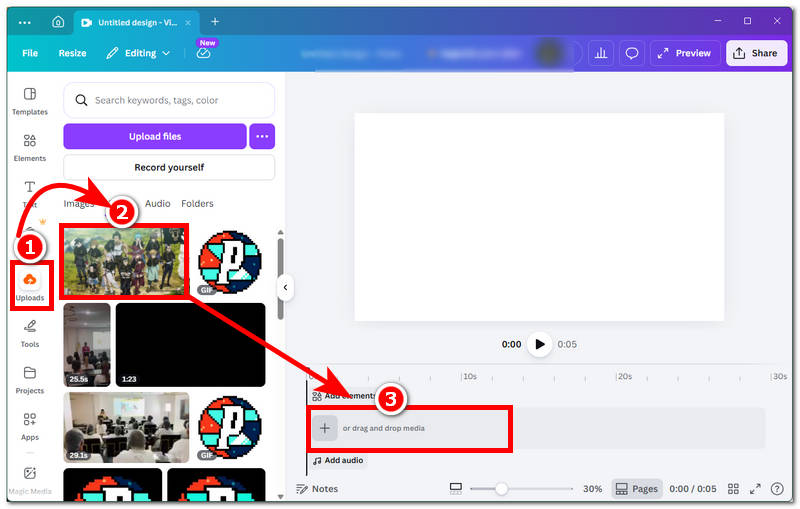
Open your Canva and from there create a new video project from scratch. Once you open an Untitled design page, proceed to upload the video you want to loop using Canva, and once the video is uploaded to the Canva media, drag it to the video timeline.
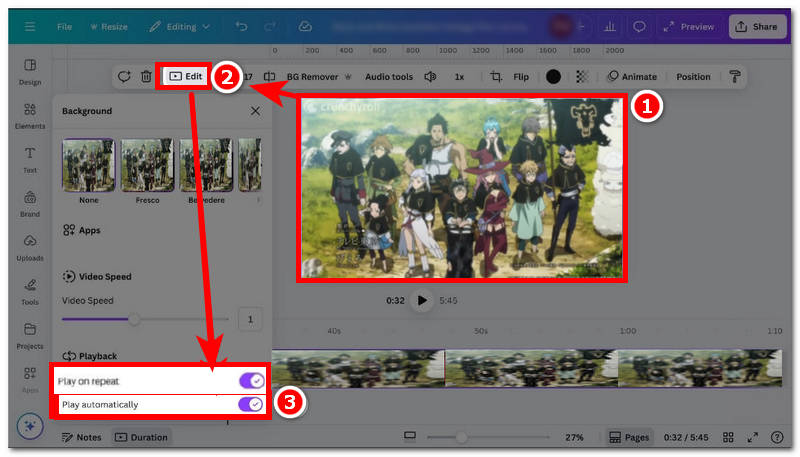
Once the video is loaded into the timeline, click on the video and from there access the Edit video setting located on the upper part of your video clip settings. From there, enable the Play on Repeat and Play Automatically settings to loop your video clip and automatically play it.
Preview Mode
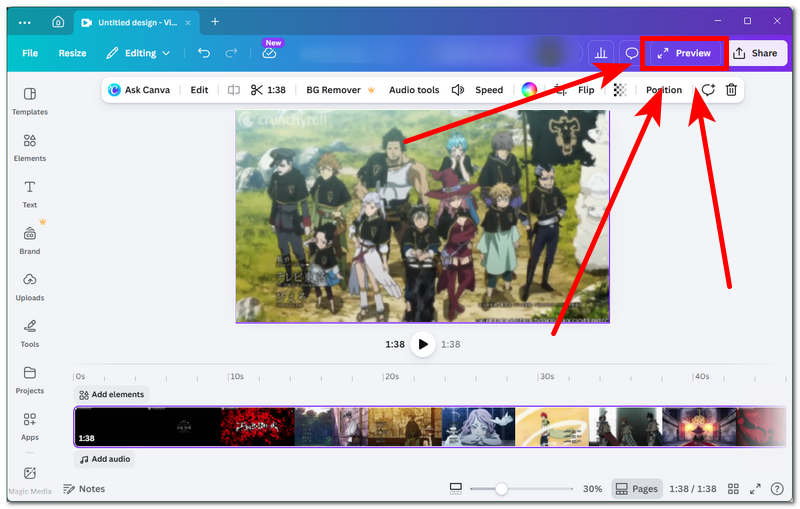
Usually, after enabling your video to play on Repeat and Play Automatically, clicking on the Preview button situated in the upper-right corner of the tool will open the video in full-screen, and thus it will play the video automatically without the user pressing the play button, and once the video is finished playing, it will automatically play from the start.
Part 2. Video Loop Download Setting in Canva
After finding out how Canva shows video clip looping in the Canva Editor and in Preview Mode, there’s a tip we'd like to keep in mind to ensure the proper settings for exporting your looping video clips in Canva.
First and foremost, as Canva has wide file format compatibility, not only MP4 but also GIFs can be uploaded and exported from the program. Secondly, if you are exporting shorter loops, it is ideal to export them as GIFs or learn how to convert video to GIF for better compatibility, and for longer loops or video presentations, it is ideal to export them as MP4s, of course, with the automatic setting and play on repeat enabled.
Part 3. Notes for Audio Tracks in Canva’s Loop Video
Canva does not automatically loop the audio tracks or the background music when the user enables the Play on Repeat and Play Automatically settings. Thus, the only way for the audio tracks to match the video's loop is to manually align them to the video; they will not sync to the loop transition. Thus, for GIF files, once you upload them, they will automatically play and loop, unlike video clips, which need to be enabled in the Edit settings.
Part 4. Best Free Online Alternative to Canva
As Canva is a powerful and functional design tool, it does not come cheaply. It offers a free version, but users can only access features and tools to a certain degree, with restrictions. Thus, this presents a problem for those who want to export or create a high-quality video loop on the platform. As Canva make video loops uniquely and different looping a video should be accessible for all without cost and restriction, that’s why in this section of the article, we will introduce the best free online video looper tool alternative to Canva that is free to use and completely web-based called ArkThinker Free Video Looper Online.
ArkThinker, a web-based video looper tool, is free with no restrictions on the quality of the video loops it produces. Moreover, it does not require users to install an application, making the tool lightweight and accessible to all devices and users. Its video looping capabilities are a straightforward tool that lets users choose the number of loops for their videos, giving them control over the duration of their loops.
How to use ArkThinker Free Video Looper Online
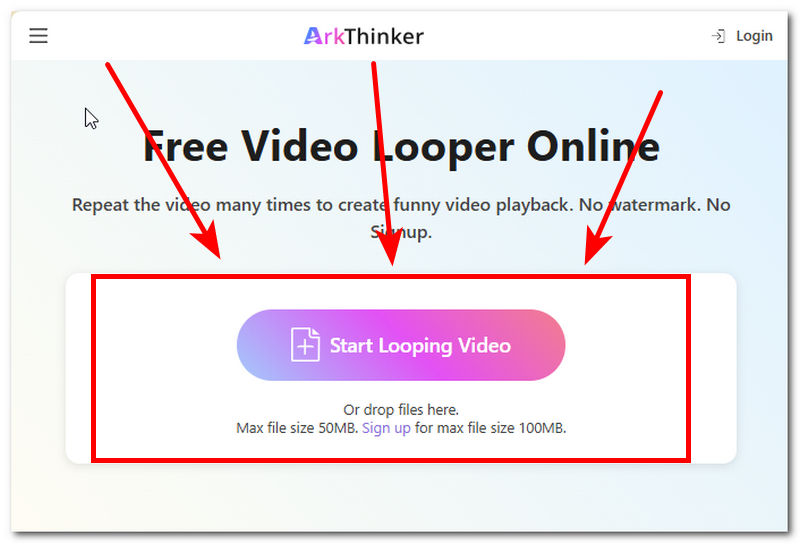
Go to the ArkThinker Free Video Looper Online official website through your preferred web browser.
From ArkThinker’s webpage, simply upload the video file you want to loop through the Start Looping Videos button. Once done, the tool will start loading your video. Just wait for it to finish loading to proceed.
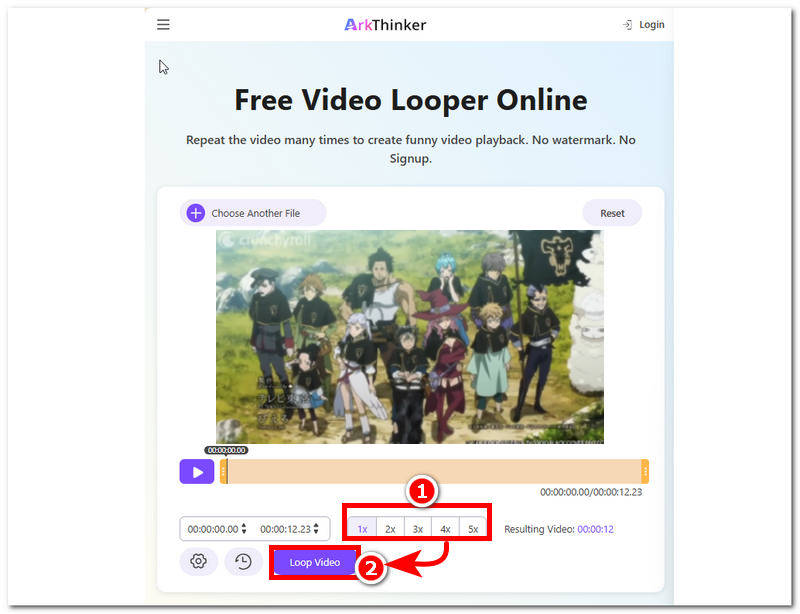
Once your video is loaded into the tool, from the lower part of the tool, you will see several loops. From there, you may choose the number of loops you want your videos to have, and once you have chosen your preferred loops, you may proceed to click on the Loop Video button to initiate the looping process and have it be saved on your device.
Part 5. FAQs about How to Loop A Video in Canva
Is there a way to loop a short clip seamlessly?
Yes, there is a way to shorten your video file to loop, and you can do so easily in the Canva editor. To loop a shortened video file, the user must clip or trim the original video to only include the specific part of the video. After that, in the same editor, you can loop your video as long as the user wants by duplicating the shortened clip multiple times.
Can GIFs loop in Canva?
Yes, GIFs play in a loop automatically after uploading or dragging them into the editor. This has been done because GIFs are often shorter and loop continuously, allowing Canva to apply the same treatment to them.
Why isn’t my video looping after download?
A video loop may not occur even after exporting if the appropriate settings for automatic play and repeat play were not enabled on the video clip's edit settings page.
Conclusion
Canva is truly a masterpiece of a design tool that is both user-friendly and functional for all designa nd creation needs. Video looping in Canva is one of the video editor's features; however, other features are locked behind a premium subscription, which may leave some users behind who don’t want to spend pennies for a design tool. That’s when our best alternative video looper tool comes into play: ArkThinker is a straight-up video looping tool that's completely web-based, with no application installation or premium paywall required to loop a video clip.


