


How to Fix AVI Files Using 3 Options: Full Tutorial (2026)
When it comes to video file formats, AVI files are not the most popular. Despite that, they still have a niche, especially when it comes to file storage and as an editing asset. With that in mind, learning fix corrupted AVI files holds so much value as the format is not safe from common playback errors such as black screens, video lagging, or audio-video desync. In this article, we will highlight three reliable video repair tools for AVI videos: a basic video repair tool, a converter program, and a professional-grade video repair software.

- GUIDE LIST
- Part 1. Common Reasons an AVI File Won’t Play
- Part 2. How to Fix AVI Files
- Part 3. FAQs About Fixing AVI Files
Part 1. Common Reasons an AVI File Won’t Play
Index Corruption
Index corruption is a problem that causes minor issues, such as fast-forwarding and section skipping. Although its errors are quite basic, you need to ensure that it can be repaired by your AVI fix freeware option to make sure that your viewing experience will be smooth.
Incomplete or Damaged File
When handling file transfers, an incomplete process may cause your AVI file to get damaged. With will make it unplayable. To make sure that this issue will not occur, confirm that both the source and the video file you transferred have the same file size. You can also check if your file will run properly by checking it via ffmpeg to fix the AVI file.
Codec or Format Incompatibility
If you are playing a video in a modern media player, the codec and format incompatibility should not be an issue. However, older multimedia options may cause issues like error loading media files, which could cause failure to read videos not saved in the H.264 encoder. To fix this problem, you can re-encode your video using a video converter program.
Player or System Issues
Finally, the media player itself or your system may have a problem causes them to not be able to play your media file. Fortunately, this problem is the easiest to solve since you only need to download a new and more powerful media player software.
Part 2. How to Fix AVI Files
VLC Media Player Repair Function
Best For: Basic video errors and corruption issues.
Although more known as a media player, VLC Media Player can still get the job done if you want to fix the AVI index permanently. VLC made this possible thanks to its built-in Input/Codecs settings that can repair incomplete or damaged AVI videos.
To learn how to use these practical additional features, make sure to read our three-step guide below.
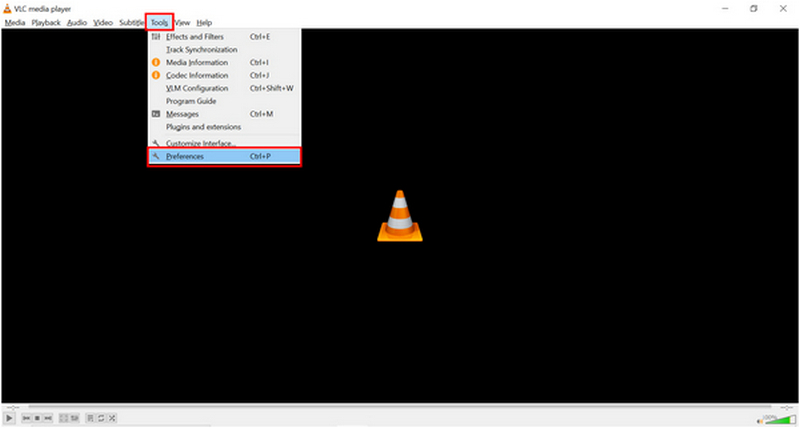
Open VLC Media Player and select the Tools tab. Then, click on the Preferences option in the dropdown menu.
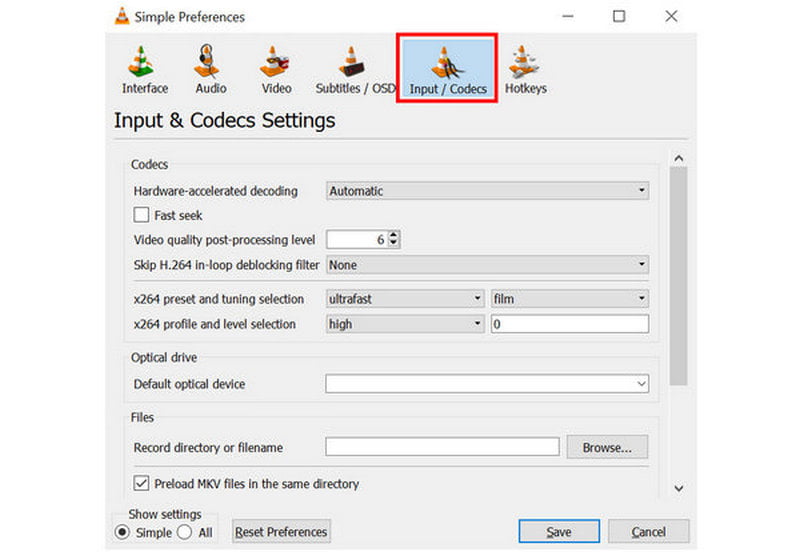
In the settings window that will pop up, go to the Input/Codecs section.
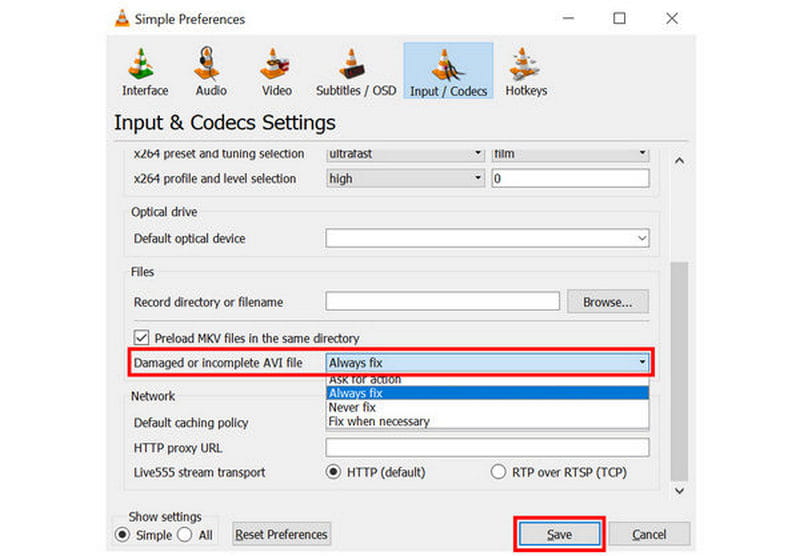
Inside Input/Codecs, scroll down and search for the setting labeled as Damaged or incomplete AVI file. Expand the list of options beside, then select Always fix. Click on Save to confirm your selection
Although labeled to only edit AVI files, VLC can also repair other formats of videos. This is a good practical option since VLC is well-known as an all-around multimedia player.
Re-Encode Using Video Converter
Best For: Fixing simple encoding issues or changing the file format of your AVI video.
Aside from video repair, you can also use video format converters to re-encode your AVI files. Among the options in the market, ArkThinker Video Converter Ultimate is a good choice. In addition to fixing AVI file codecs, it can convert your video to a more widely supported format to address AVI file compatibility issues.
Fortunately, this program is easy to use, and we have also provided a three-step guide as well as the main features of the program below. Do not forget to download it as well for easier follow-up with our guide.
Main Features:
- • Video format converter for changing video file types.
- • Encoder editor option for video files being converted in the program.
- • A video compressor tool to reduce the file size of videos that are too large.
- • Easy-to-use video editor tool optimized for beginners.
- • Supports 500+ video formats for accessible video editing and conversion.
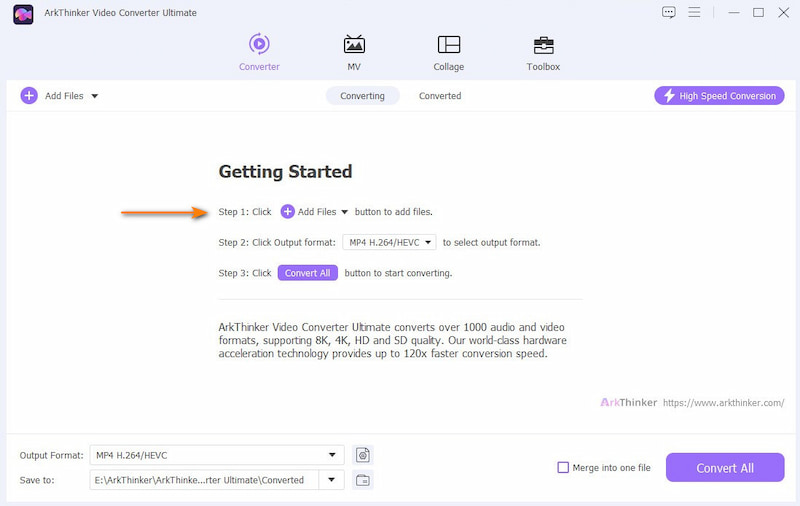
Open ArkThinker Video Converter Ultimate and then select the Add Files button in the Converter tab.
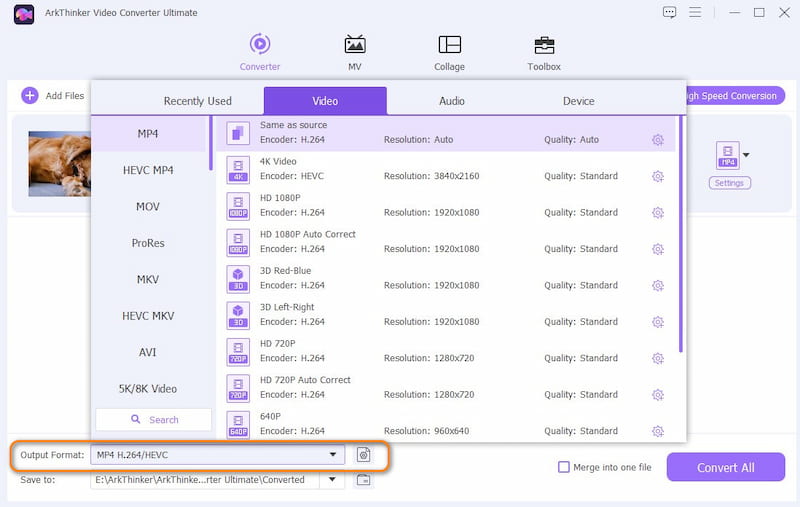
Next, click Output Format, then select the file type you want your AVI video saved in. Make sure to check the encoder type as well if you wish to use H.264 or HEVC.
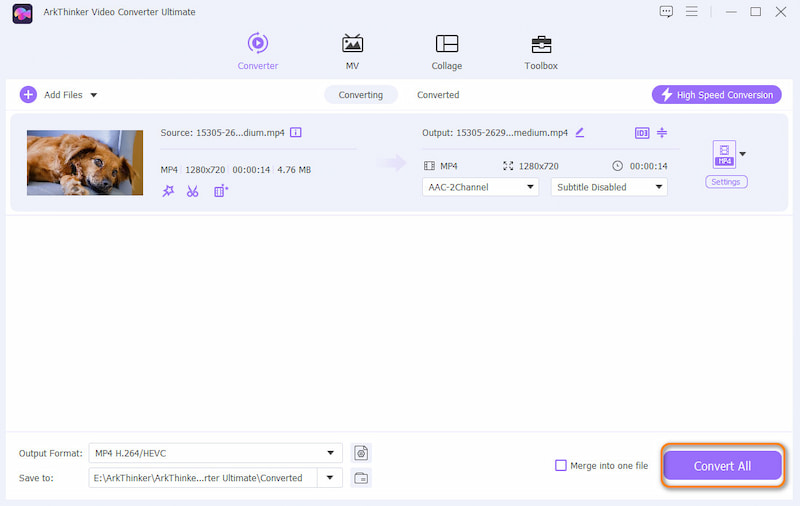
With the Output Format and your chosen Encoder type now selected, return to the Converter tab and click Convert All to convert the AVI file to a different format or just fix the video encoder.
Since ArkThinker Video Converter Ultimate has cross-platform availability, it also makes for a good choice if you want an AVI fixing tool for Mac. You can also use the program to re-encode videos for Mac computers.
Professional Video Repair Software
Best For: Fixing videos with heavy playback corruption due to interrupted file transfer, failed conversion, and other similar issues.
For advanced video corruption and issues, ArkThinker Video Repair is the more advisable option. Equipped with an AI-supported tool that can fix videos using reference clips, the software is a lightweight option for repairing video files.
Instead of using heavy AI-repair models, the software uses AI-assisted video repair only, which makes retaining the natural look of the video possible. This makes the program capable of fixing files corrupted by failed video conversion, hard drive crashing, exporting issues, or even failed file transfer.
To make repairing AVI files simple, we recommend using the software instead, thanks to its practical main features. Make sure to read the software’s three-step guide below to make learning how to use it more straightforward.
Main Features:
- • Automated video repair with a modern AI-supported system.
- • Repairs corrupted videos three times faster than other repair tools.
- • Fixes broken videos due to failed format conversion, hard drive crash, export issue, file transfer issue, and more.
- • Repaired videos keep their original quality once fixed.
- • Simple interface design only requiring a few clicks and a sample video to repair media files.
Open ArkThinker Video Repair, then select the Add button on the Orange Box to add the corrupted video you want to repair.
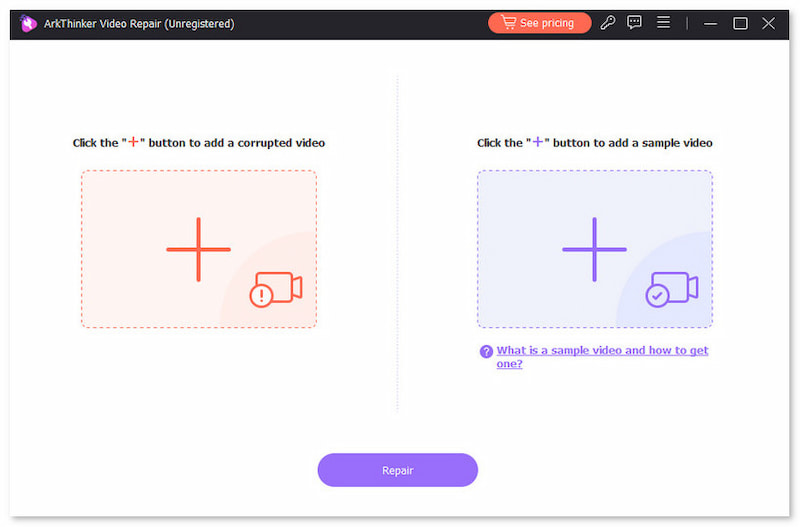
Next, select the add button as well in the Purple Box to import the Sample Video, which will be used during the video repair process. Both the Corrupted and Sample Video should be savedin AVI format as the Sample Video will be used as the reference during the repair process.
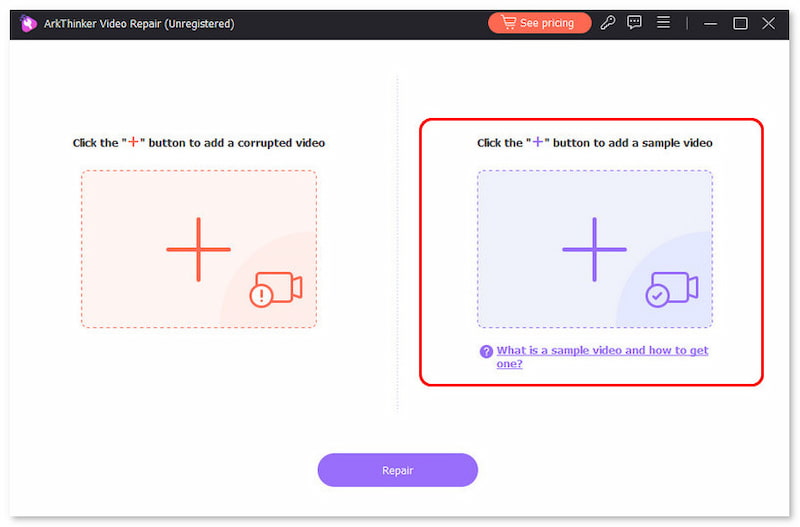
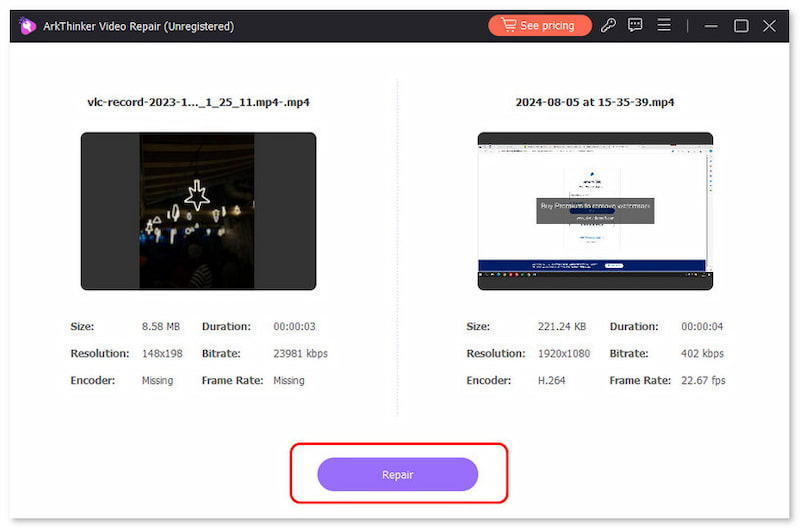
Once both the Corrupted Video and the Sample Video are added, click Repair to begin fixing the errors in your AVI file.
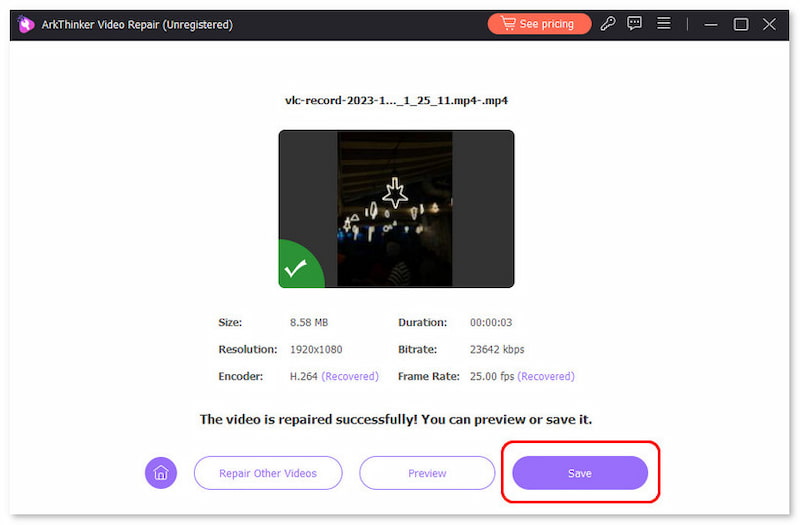
After the video repair, click Preview to watch the repaired video and to also check if it plays properly. Finally, click on Save to import the repaired AVI file on your computer.
Using only a practical sample video and an AI-supported repair program, you can now ensure that your AVI files will be fixed without any underlying issues. ArkThinker Video Repair was not only designed for powerful error fixing, but also to be as intuitive as possible.
Part 3. FAQs About Fixing AVI Files
How to use FFmpeg to fix AVI?
You need to learn the proper command lines. Then enter them in your terminal with FFmpeg installed. However, learning the proper command lines requires you to learn them outside the program.
How to repair multiple AVI files at once?
You need to use a program with batch processing features. ArkThinker Video Converter Ultimate and Video Repair are two solid examples. The former for basic codec issues and the latter for more complex errors.
How to fix an AVI file online ?
There are online tools that can fix or repair MP4 files or AVI videos. However, online files are not reliable for video corruption fixing. You need to use desktop-based tools as they are more stable.
Is it hard to fix corrupted videos?
No, it is not. Fixing corrupted videos can be done using exclusive software. They are usually easy to use as well.
Should I repair videos with errors?
It depends on the error and the software you will use for repair. For basic errors, video reencoders may be enough. However, corruption issues require exclusive video repair tools.
Conclusion
Now that we have provided our readers with the best options on desktop to repair AVI files, we hope that this article has given important details required for fixing media files directly on your computer. To fix heavy file corruption from your video files, make sure to use ArkThinker Video Repair, which you can download using the link below.
What do you think of this post? Click to rate this post.
Excellent
Rating: 4.9 / 5 (based on 601 votes)


