


4 Ways to Fix Broken MKV Files: A Step-by-Step Guide
Among storage-conscious users, MKV video files are the premium option, as this file type is popular for its superior quality preservation thanks to efficient video codecs and minimal quality loss. As such, it is a popular option for downloading TV series and movies. In this article, we will explore three different solutions you can use to fix MKV files with playback issues and other format-related problems. This article will feature the best options for basic index repair, codec and format conversion, and a professional video editing tool for severe file corruption.

- GUIDE LIST
- Part 1. How to Fix MKV Files with VLC Media Player
- Part 2. How to Fix MKV Files with Arkthinker Video Converter Ultimate
- Part 3. How to Fix MKV Files with Video Repair Tool
- Part 4. FAQs About Fixing MKV Files
Part 1. How to Fix MKV Files with VLC Media Player
The first MKV fixer we will provide is also one of the most popular multimedia players for Windows and Mac computers, none other than VLC Media Player. Although better known as a video player, this program includes a tool to fix corrupted index files, primarily for AVI videos and other video formats.Unfortunately, the software’s Tools option is only basic. It lacks advanced options for more complex video repair, such as resolving issues with loading media files.To learn how to use the program, read our three-step guide below.
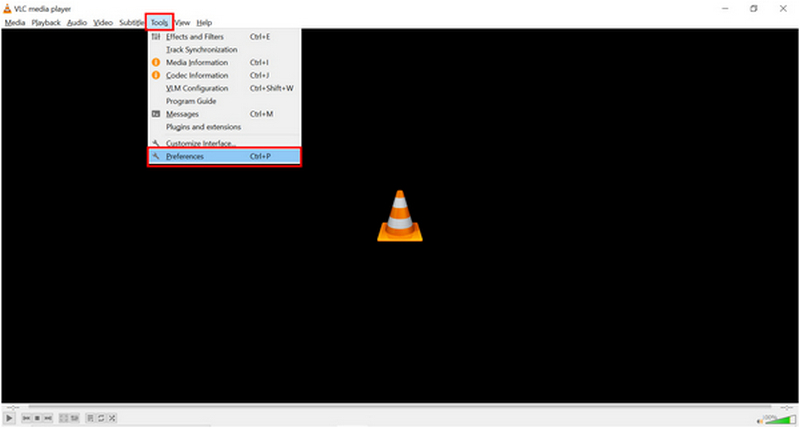
Open VLC Media Player and select the Tools tab. Then, click on the Preferences option in the dropdown menu.
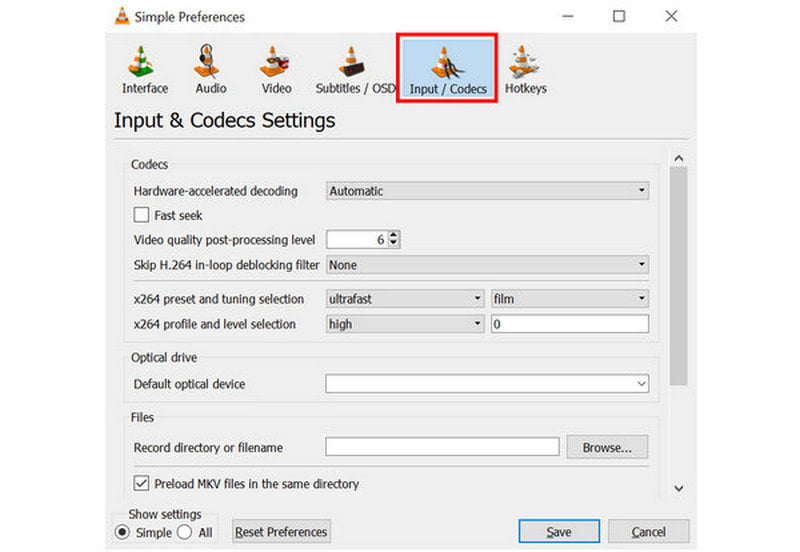
In the settings window that opens, go to the Input/Codecs section.
Inside Input/Codecs, scroll down and search for the setting labeled Damaged or incomplete MKV file. Expand the list of options beside, then select Always fix. Click on Save to confirm your selection
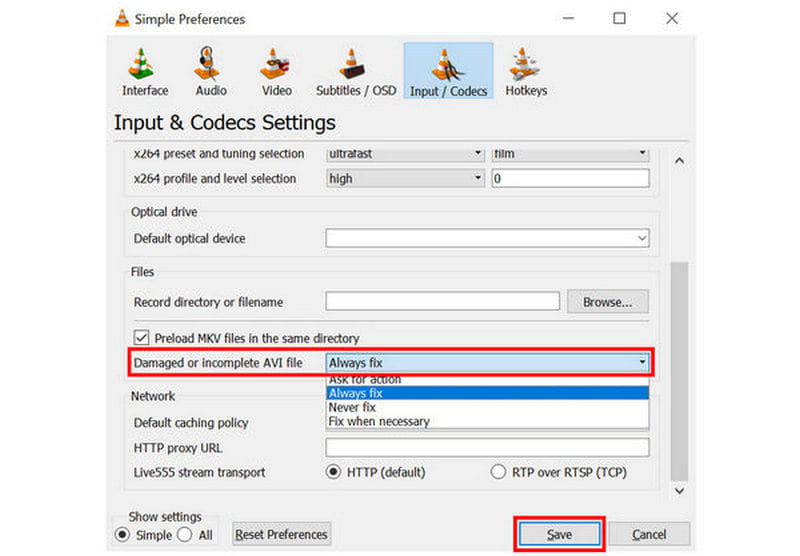
Although readily available on the multimedia player, it can only handle basic video editing, such as fixing audio sync in MKV videos.
Part 2. How to Fix MKV Files with Arkthinker Video Converter Ultimate
Aside from basic playback errors, another problem that may prevent MKV files from functioning well is codec-related issues or format incompatibility with your media player. Fortunately, these can be resolved with just one program: ArkThinker Video Converter Ultimate.
Designed as a format converter, the software can convert your MKV video to a more widely supported format, such as MP4. Additionally, it can be used to change the encoder type of your video, which resolves another potential issue in your file.
To learn what makes ArkThinker Video Converter Ultimate an excellent choice for resolving codec and format incompatibilities, make sure to read its main features below and read our three-step guide on how to use it.
Download the software first to make our guide easier to understand.
Main Features:
- • Video format converter for changing video file types.
- • Encoder editor option for video files being converted in the program.
- • A video compressor tool to reduce the file size of videos that are too large.
- • Easy-to-use video editor tool optimized for beginners.
- • Supports 500+ video formats for accessible video editing and conversion.
Open ArkThinker Video Converter Ultimate and then select the Add Files button in the Converter tab.
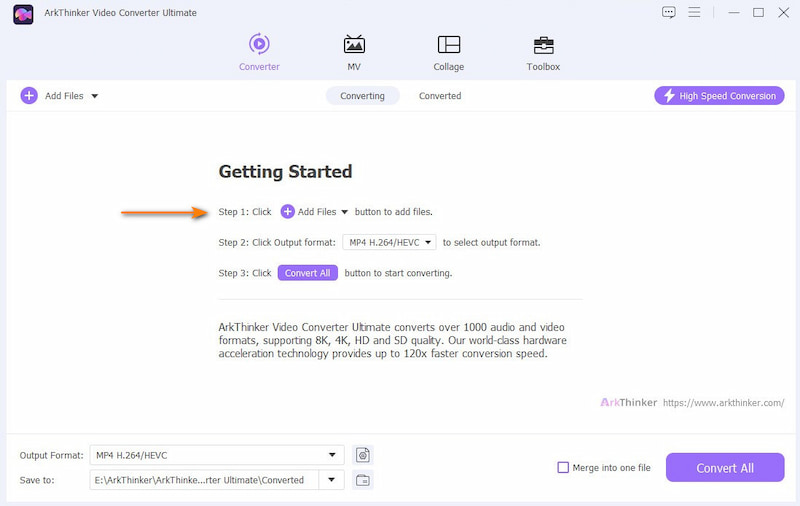
Next, click Output Format, then select MP4 to convert your MKV video into that format. Make sure to check the encoder type as well if you wish to use H.264 or HEVC.
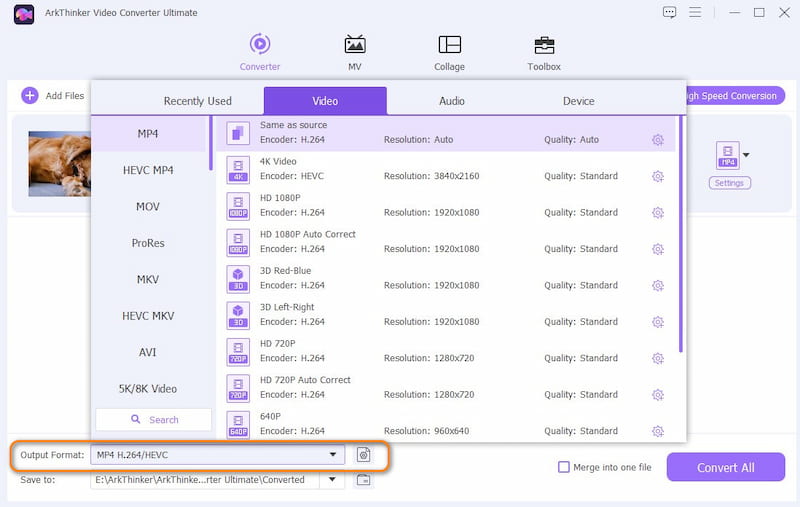
With the Output Format and your chosen Encoder type now selected, return to the Converter tab and click Convert All to convert the AVI file to a different format or just fix the video encoder.
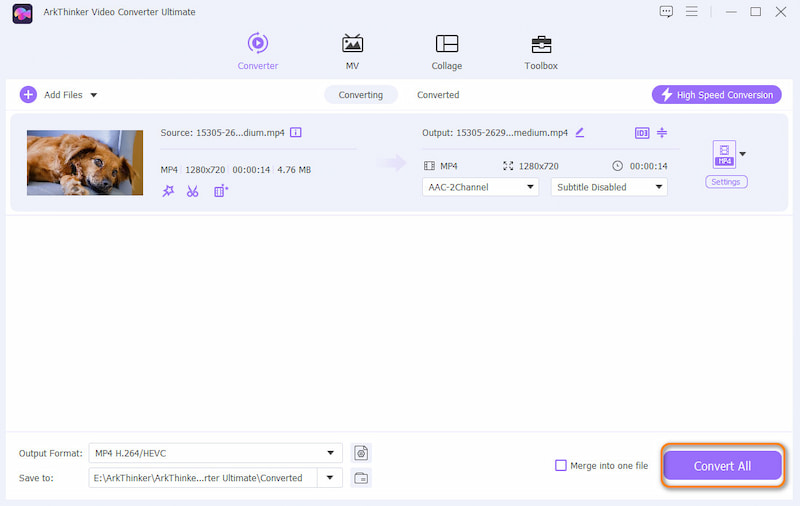
Once the conversion process is complete, you can ensure that your video’s codecs and format are set correctly and that it plays on your chosen media player without issues.
Part 3. How to Fix MKV Files with Video Repair Tool
When facing more advanced problems, such as file corruption, you need to use more advanced video repair programs, such as ArkThinker Video Repair. Unlike the two previous options, which can only fix video index, codec, and file incompatibility issues, this program is best used for severe file corruption.
This was made possible because the software can repair major file damage caused by failed video conversion, hard drive crashes and corruption, export issues during editing, and data loss from a poor transfer signal.
If you encounter problems similar to these, we recommend using ArkThinker Video Repair for your MKV files. However, make sure to convert them to MP4, MOV, or 3GP first, as the video repair tool does not support MKV files.
You may download it using the link below to make learning how to use it easier.
Main Features:
- • Automated video repair with a modern AI-supported system.
- • Repairs corrupted videos three times faster than other repair tools.
- • Fixes broken videos caused by failed format conversion, hard drive crashes, export issues, file transfer issues, and more.
- • Repaired videos retain their original quality.
- • Simple interface design that requires only a few clicks and a sample video to repair media files.
Open ArkThinker Video Repair, then select the Add button on the Orange Box to add the corrupted video you want to repair.
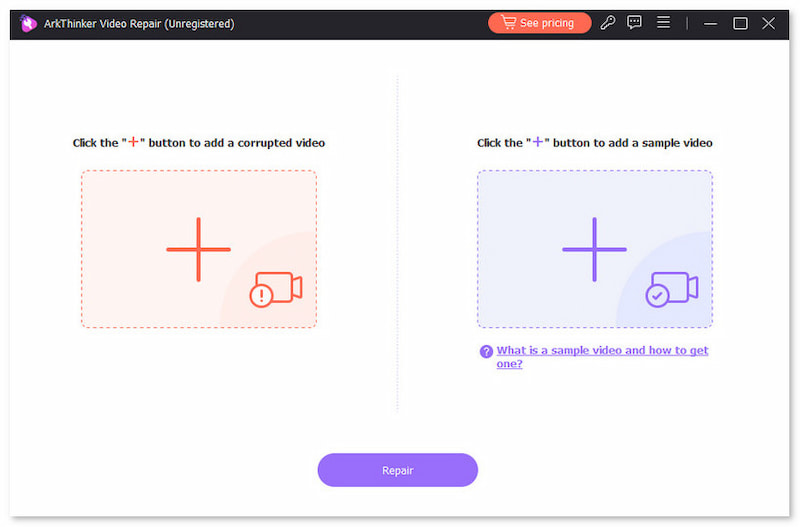
Next, select the Add button in the Purple Box to import the Sample Video, which will be used during the video repair process. Both the Corrupted and Sample Video should be saved in AVI format, as the Sample Video will serve as the reference during the repair process.
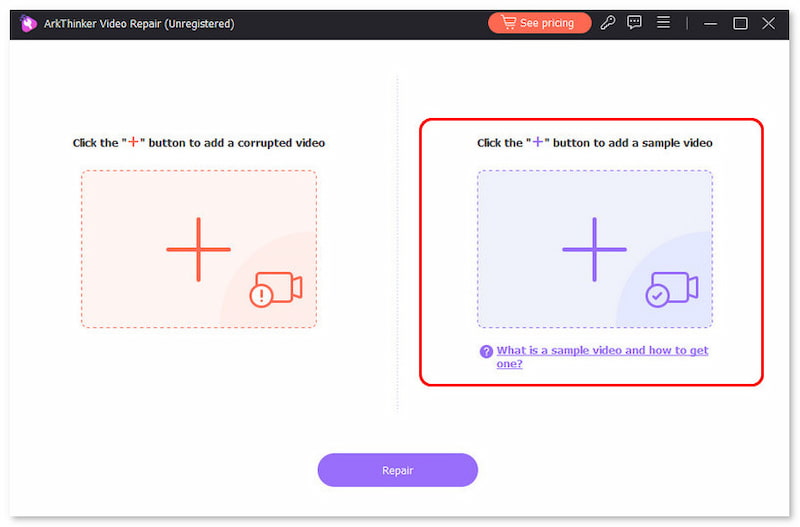
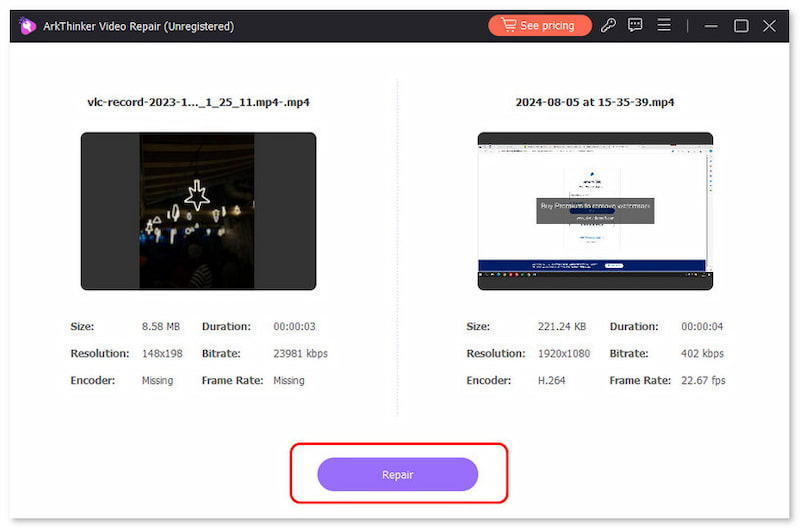
Once both the Corrupted Video and the Sample Video are added, click Repair to begin fixing the errors in your AVI file.
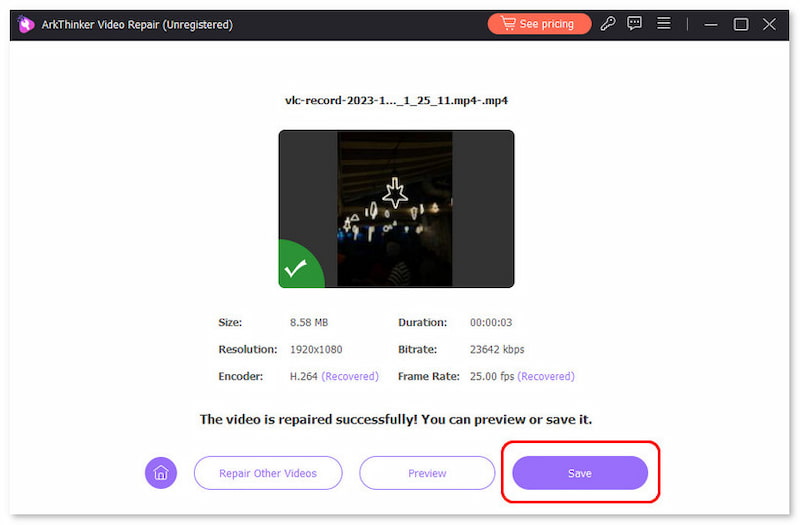
After the video repair, click Preview to watch the repaired video and to also check if it plays properly. Finally, click on Save to import the repaired AVI file on your computer.
Although there are options to fix MKV files online, a desktop-based solution is still the better choice thanks to its stability and overall reliability. ArkThinker Video Repair is a perfect example.
Part 4. FAQs About Fixing MKV Files
Can I fix MKV files online ?
Yes, you can. There are online tools for basic video repairs. However, they are not the best option for stability.
How to repair multiple MKV files at once?
You need to use a program that supports batch conversion of MKV files to MP4 or other video formats. For codec and format issues, ArkThinker Video Converter Ultimate is a good example. It is also fast and very easy to use.
How to repair a corrupt video using the FFmpeg method?
You need to use the correct command-line options with FFmpeg. If you fail to do so, your file will be at risk of corruption. As such, use FFmpeg only if you are knowledgeable about it.
Can I use FFmpeg to fix MKV?
Yes, you can. However, FFmpeg requires a lot of prior knowledge to use. This makes it not advisable for beginners.
Can I use VLC for the MKV lag fix ?
Yes, you can. However, only basic playback issues, such as lag, may be fixed in VLC. File corruption requires the use of more advanced repair tools.
Conclusion
With the best tools to fix MKV files now discussed, we hope you can select the solution that works best for you. As such, all you need to learn is to select which program suits your needs and current technical skills. Among them, ArkThinker Video Repair is the most advisable as it is both the easiest to use and most capable. You may download it with the link below.
What do you think of this post? Click to rate this post.
Excellent
Rating: 4.8 / 5 (based on 559 votes)


