


3 Ways to Repair 3GP Files’ Codec and Corruption Errors
When it comes to video formats, the popularity of classic file types has declined sharply. This was made possible by the continuous development of modern media formats, which are better optimized for current use. Among legacy formats, 3GP is rarely used today. Despite that, 3GP videos still have a niche for file transfer with minimal bandwidth usage and for meeting storage requirements. In this article, we will explore three excellent solutions you can use to learn how to repair 3GP video files. These options will solve codec issues and major file corruption. The tools presented in this article are also available across different platforms, including Windows, macOS, and online.

- GUIDE LIST
- Part 1. Why Your 3GP File Might Be Broken
- Part 2. How to Repair 3GP Files Using Professional Video Repair Software
- Part 3. How to Repair 3GP Files Using Video Format Converter
- Part 4. How to Repair 3GP Files Online Repair Tool
- Part 5. FAQs About Repairing 3GP Files
Part 1. Why Your 3GP File Might Be Broken
Codec or Format Issues
Most playback issues are usually rooted in a codec problem. This causes video playback to be generic, resulting in choppy videos or failure to play. Format issues may also occur if you try to play 3GP videos and your media player does not support them. This can be fixed by either converting the 3GP video or using a modern media player.
File Corruption
A more direct problem for video files is file corruption. This can occur during any process you perform on your video file. For example, file transfers that are interrupted or occur during the export process after the video has been edited. This can only be fixed by professional-grade video repair tools.
Unsupported Player
Finally, a multimedia player designed to work only with modern formats may also fail to play 3GP files. To fix this problem, you may convert your video to a different format, or use a media player with more advanced codec and format support.
Part 2. How to Repair 3GP Files Using Professional Video Repair Software
We will start this guide by introducing the most powerful repair tool featured in this article, designed to handle severe file corruption: ArkThinker Video Repair. As its name suggests, this professional video repair program was designed specifically to repair videos facing major file corruption.
Regardless of the source of corruption, the software can fix broken 3GP videos as long as a healthy reference video is uploaded alongside the broken file. In terms of corruption origin, the software can handle file damage from failed video conversion, storage crashes, interrupted exports, and poor file transfer signals.
With that in mind, the program can fix all forms of video integrity issues thanks to its practical main features listed below. To learn how to use the software, read our three-step guide under the main features.
Do not forget to download it as well for easier follow-up with our guide.
Main Features:
- • Repairs corrupted videos three times faster than standard video repair programs.
- • Automated video repair powered by a modern AI-supported system.
- • Fixes video corruption issues caused by failed format conversion, hard drive crashes, export issues, file transfer issues, and more.
- • Repaired and recovered video files will retain their original quality after the repair process.
- • Equipped with a simple interface design that requires only a few clicks and a reference video to start the repair process.
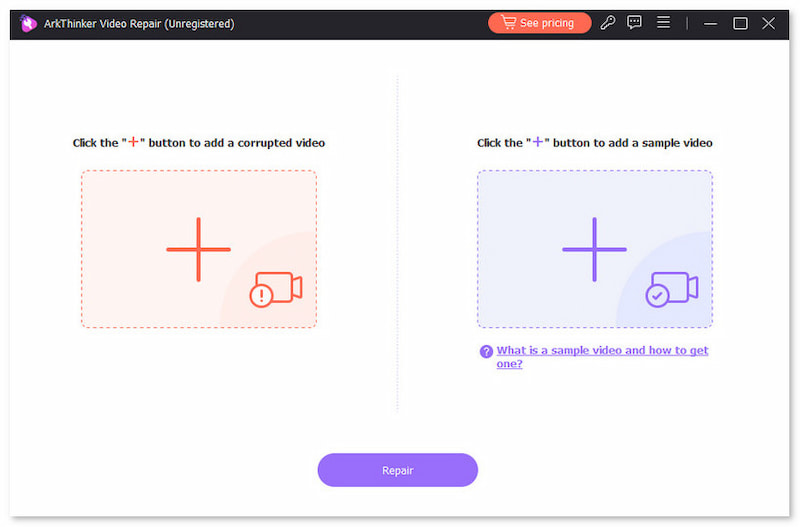
Open ArkThinker Video Repair, then select the Add button on the Orange Box to add the 3GP video file you want to repair.
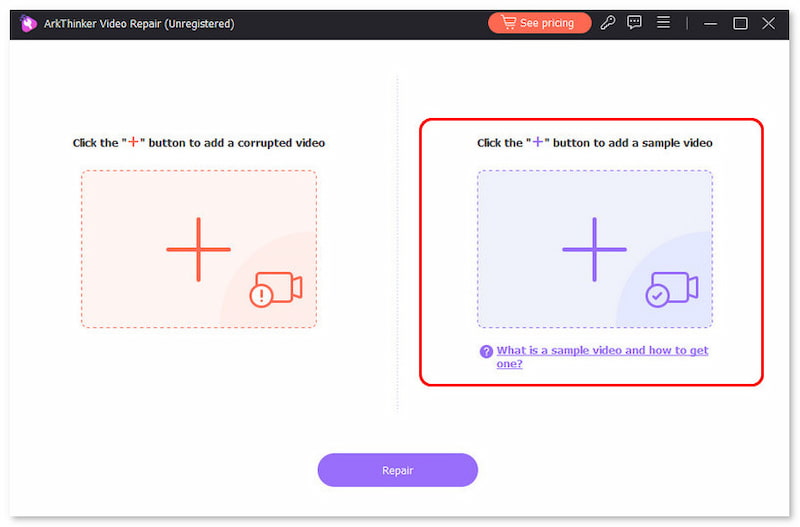
Next, select the Add button in the Purple Box to import another 3GP file to serve as the Sample Video. It will be used as the reference during the video repair process.
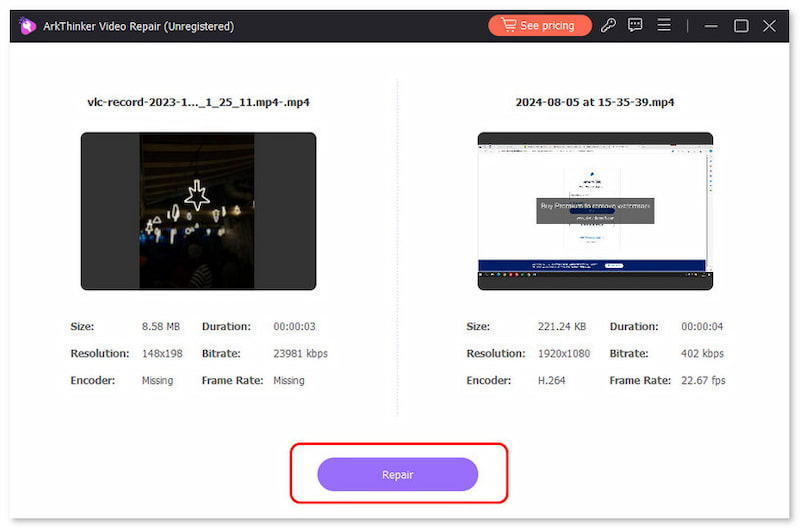
With both the Corrupted Video and the Sample Video added, click Repair to begin fixing the problem in your 3GP file.
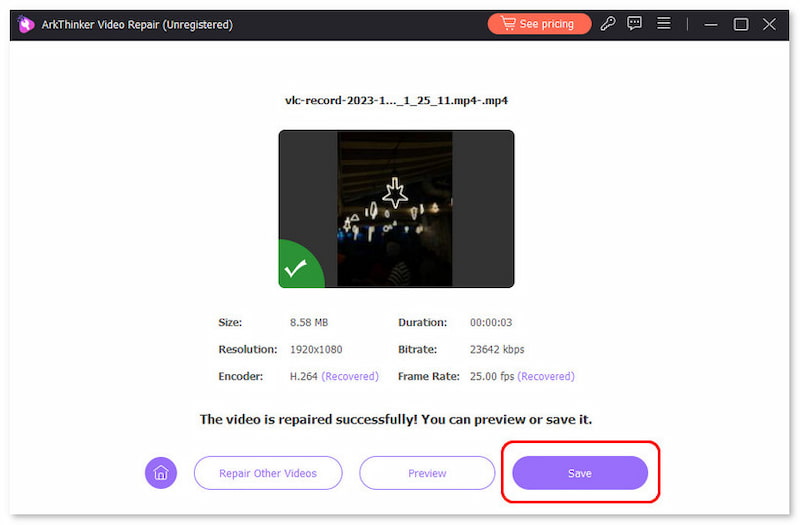
Once the video repair is complete, click Preview to watch the video and check whether it plays properly. Finally, click on Save to import the fixed 3GP file back to your computer.
Unlike other video repair programs, ArkThinker Video Repair’s use of a sample video means it does not fully depend on AI repair models. This made the program produce videos that are natural-looking yet high-quality.
Part 3. How to Repair 3GP Files Using Video Format Converter
For minor video playback issues with 3GP files, the most probable solution is to re-encode the video or convert it to a format better suited for modern video players. Fortunately, these two potential solutions may be provided by ArkThinker Video Converter Ultimate.
As its name suggests, this program was designed specifically to convert video files. This automatically makes the program a viable solution if you are having issues opening video files in your video player.
In addition to format conversion, the tool can also re-encode your video to make it playable on modern devices. This also makes the program a practical choice for fixing video files with broken codecs.
In addition to these benefits, ArkThinker Video Converter Ultimate also features practical features that make it optimized for modern multimedia use. To learn how to use the program, do not forget to download our three-step tutorial below.
Download the software now to make learning how to use it easier.
Main Features:
- • Versatile video format converter for changing video file types to 500+ formats.
- • Re-encoder editing tool to change the codec of files being converted in the program.
- • Video compressor tool designed to reduce video file size.
- • Easy-to-use video editor feature built and optimized for beginners.
- • Supports 500+ video formats for accessible format conversion and video editing.
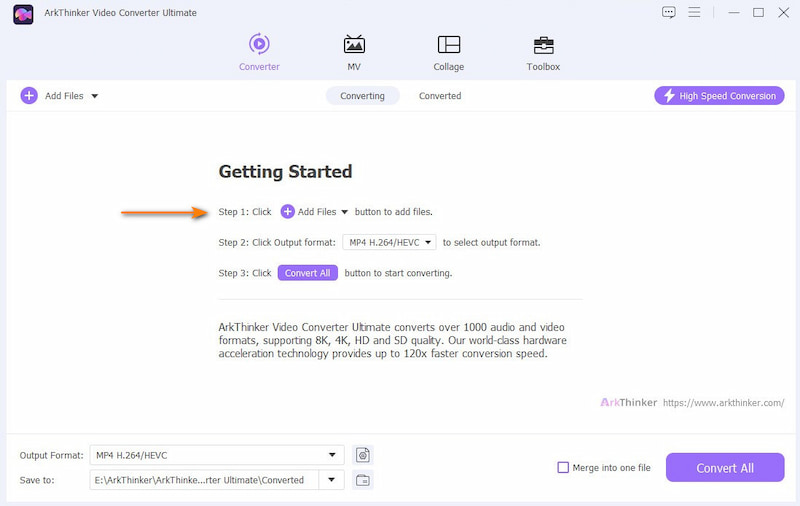
Open ArkThinker Video Converter Ultimate and then select the Add Files button in the Converter tab.
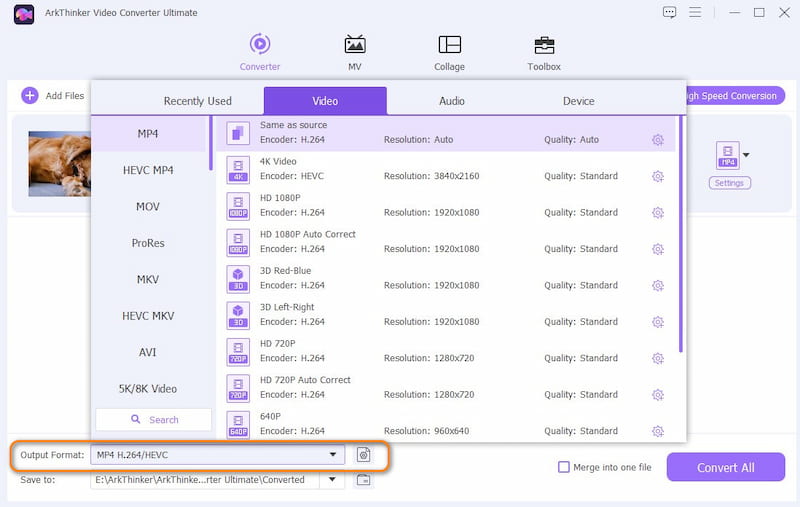
Next, click Output Format, then select 3GP among the available formats. Make sure to check the encoder type as well if you wish to use H.264 or HEVC.
With the Output Format and Encoder type now selected, return to the Converter tab and click Convert All to convert the 3GP file to fix the video file’s encoder.
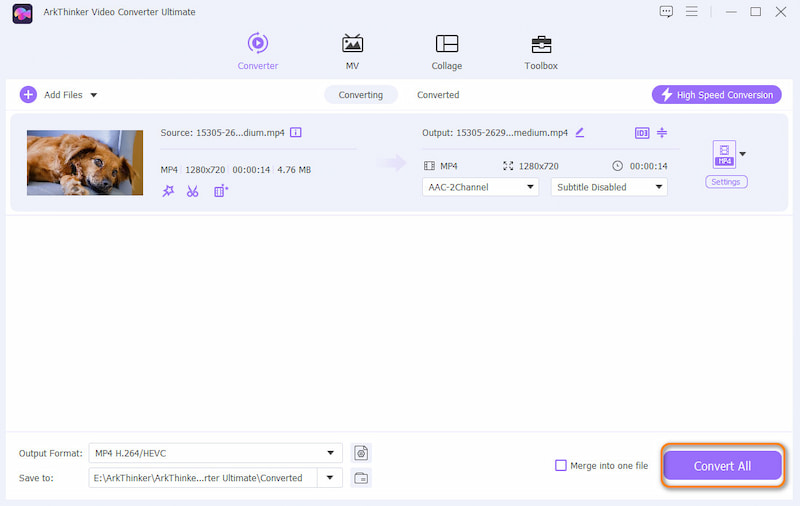
After converting your 3GP video, you can now ensure that its codecs are intact. You can also use the same feature to convert the video file to MP4 or any other modern video format you want.
Part 4. How to Repair 3GP Files Online Repair Tool
For maximum convenience, browser-based options are viable enough if you are facing minor video playback issues. As such, you can use Clever Online Video Repair to repair 3GP files online.
Unfortunately, this online tool has reliability issues with file repair. In fact, our three-step guide failed to repair the 3GP tool we uploaded, resulting in a generic playback error.
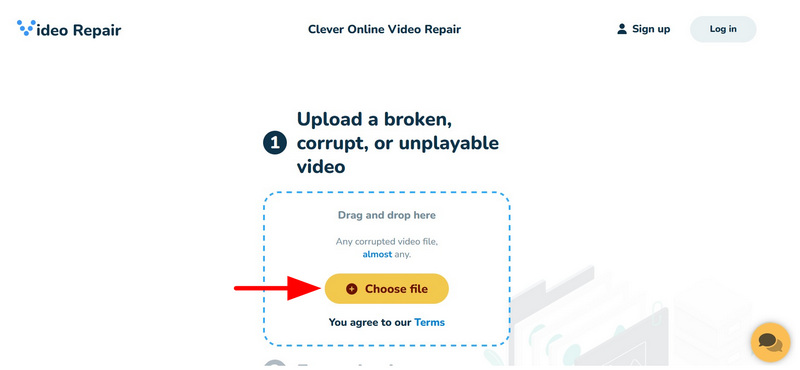
Go to Clever Online Video Repair’s website. Then, select the Choose File option inside the upload box of the online program.
Wait for the 3GP video repair process to start after the Auto Repair countdown.
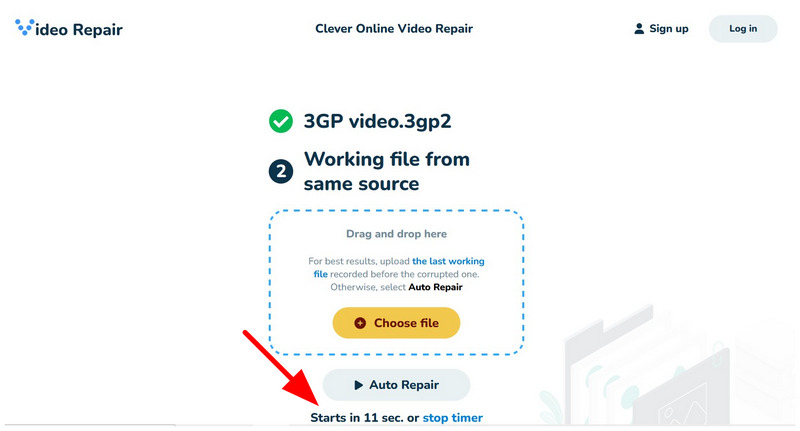
Depending on the video you want to repair, a download button will appear under the Download File section of the program. Unfortunately, Clever Online Video Repair failed to fix the video we uploaded for the tutorial. Otherwise, a download option will appear on the website.
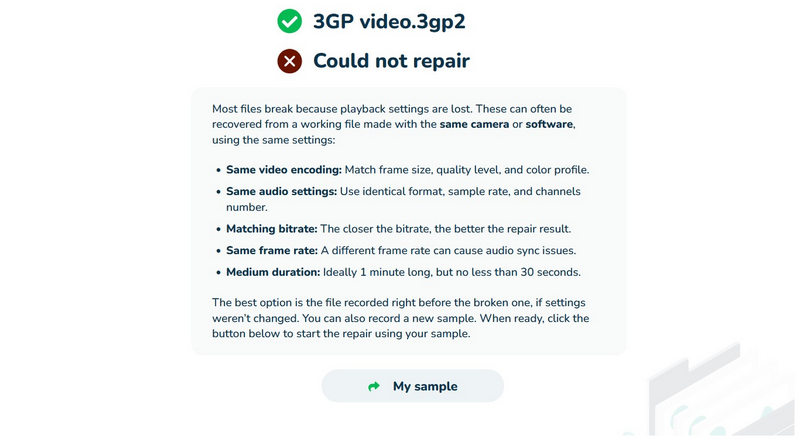
Although our tutorial failed to fix the 3GP video we have uploaded. The software can still get the job done with other video file formats.
Part 5. FAQs About Repairing 3GP Files
What are 3GP files used for?
3GP videos are usually used for 3G file transfer. However, it also has modern applications. It is used for file transfer with low bandwidth usage.
Can I fix corrupted 3GP videos?
Yes, you can. There are video repair tools that can fix 3GP videos. In this article, all of the programs we have used are suitable for 3GP repair.
Can VLC files fix 3GP videos?
Yes, it can. However, VLC’s repair tool is better suited for AVI repair. It can fix 3GP files, but only for regular playback problems.
Are MP4 files better than 3GP?
Yes, they usually are. MP4 videos are more modern and widely supported by media players. They also have better quality and more modern codecs.
Should I use 3GP videos on modern devices?
No, you should not. 3GP videos are better used on older devices. However, you can convert 3GP videos to MP4 to make them optimal for modern devices.
Conclusion
Now that we have provided our readers with the best 3GP repair options, we hope you can fix your 3GP video based on the damage you are facing. If you think that you are facing a major problem, consider using ArkThinker Video Repair, as it was designed to handle advanced issues. You may download it using the link below.
What do you think of this post? Click to rate this post.
Excellent
Rating: 4.8 / 5 (based on 620 votes)


