


QuickTime Player Loop Video: Default & Online Tool Method
QuickTime is Apple’s proprietary multimedia player and framework for both software environments and file formats. Most commonly known as the media player on macOS devices, QuickTime supports the display of video file formats, including MOV, its very own video format known for high-quality video. As a video player, it performs the same function as other video players: users can continuously play a video clip, commonly known as looping. As video looping is a perfect choice for displaying video in a display kiosk or presentation, having a built-in program in macOS to loop video must be wonderful for macOS users. That’s why this article takes this opportunity to explain how to loop a video in QuickTime, especially for those new to the macOS ecosystem.
To make it more interesting, this article will also list some limitations of using QuickTime Player as a video looping program, so that users are aware of the extent to which it offers for video looping and what it does not. Thus, to address the limitation, we included a video looper tool as an alternative to QuickTime's looping so users can still get on with their day without worrying about which tool to use to loop their video.

- GUIDE LIST
- Part 1. How to Loop Video in QuickTime Player on macOS
- Part 2. Limitations of QuickTime Loop Video
- Part 3. Best Free Online Tool to Loop Video
- Part 4. FAQs about QuickTime Video Looping
Part 1. How to Loop Video in QuickTime Player on macOS
In this section, you will find two methods for performing a QuickTime loop video using your macOS QuickTime Player. The methods use the menu method and keyboard shortcuts, both of which are easy to follow.
Using Menu Method:
Using your macOS device, proceed to open your video file with QuickTime Player as the media player option.
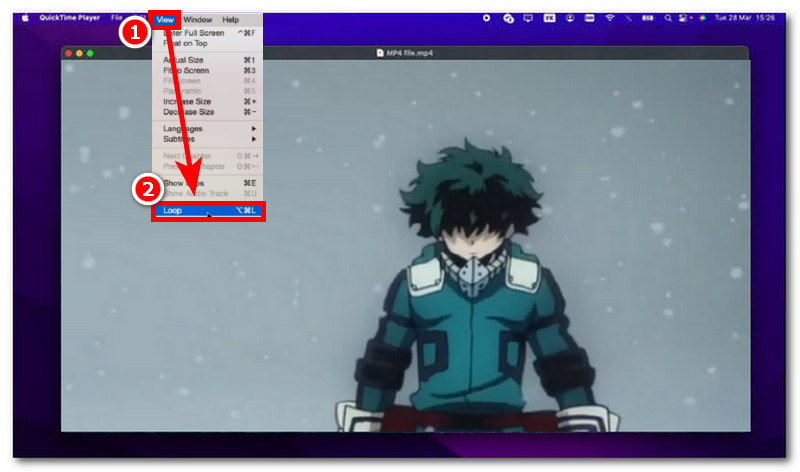
Once your video file is open within the QuickTime Player program, simply head over to the upper part of your screen and locate the View menu section.
Click on the View menu section to extend the menu setting, and from there, locate and click on the Loop setting.
By clicking on the Loop, your video that is playing within QuickTime Player will continuously play in a loop until you stop or close the player.
Using the Keyboard Shortcut Method:
Open your desired video on your macOS device you wish to loop using QuickTime Player.
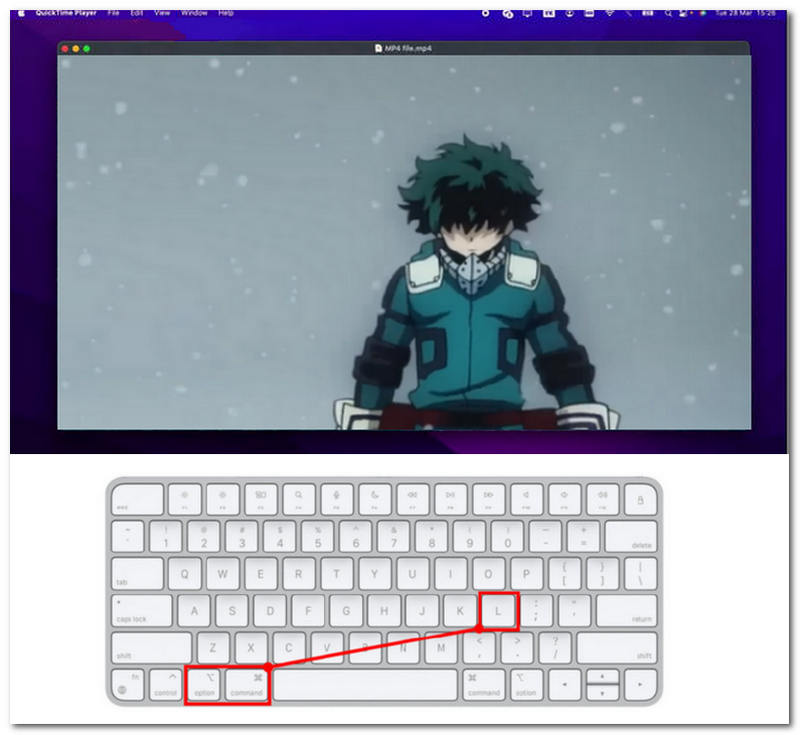
Once your video is playing on QuickTime Player, to make it loop without using the menu method, you can do so by using a keyboard shortcut method.
While your video is playing, simply press the Option + Command + L key on your keyboard to make your video start playing in a loop.
After pressing the shortcut keys, your video should be able to play in a loop without your intervention.
Part 2. Limitations of QuickTime Loop Video
While QuickTime Player is free and built-in for macOS, users should be aware of its limitations in video GIF looping, such as limited format support and noticeable audio restarts. In this section, we list the limitations of the looping QuickTime video feature to inform users and new macOS users what to expect with the program in terms of video looping.
- • QuickTime Player has a noticeable loop point, where it doesn’t apply a seamless crossfade between the start and end points of the video.
- • QuickTime Player has a noticeable audio restart loop. It struggles to make the video’s audio smooth, or at least less noticeable, when looping.
- • Unlike other player or video looper tools, QuickTime Player is just a straight-up video player and does not offer video looping controls.
- • Limited video file format compatibility. Because QuickTime Player mostly supports Apple’s own MOV video format, it offers limited support for other formats, making it not universally smooth to play and loop videos in other formats.
In conclusion, while the listed limitations may be non-negotiable to some users to consider using QuickTime Player to loop their videos, in reality, it is what makes QuickTime Player still functional as video looper because it makes the program a straight up video looping player with no extra features it is perfect to use for when user are just in need of quick, accessible to macOS video looper tool.
However, if you are more into customization, a lightweight yet fast and accessible video looper tool, then a web-based video looper is the perfect choice for you, which we will discuss more below.
Part 3. Best Free Online Tool to Loop Video
If you find QuickTime play video on loop too simple and lacks customization for video looping needs, but don’t want to install a third-party tool, then using a web-based video looper tool is the perfect solution as online-based video looper like ArkThinker Free Video Looper Online is an accessible tool as it is complete web-based and doesn’t require users to install unnecessary application just for users to loop their videos with.
Moreover, what makes this the perfect alternative to QuickTime Player is its ability to save your looping video as an actual video file on your macOS, which you can easily access and play anytime, anywhere. This convenience is just part of many good functions of ArkThinker. This web-based video looper also lets users set the number of loops, giving more control compared to QuickTime Player.; in this way, users have more control over their video loops.
How to use ArkThinker Free Video Looper Online
Open your macOS Safari and head over to the ArkThinker Free Video Looper Online official website.
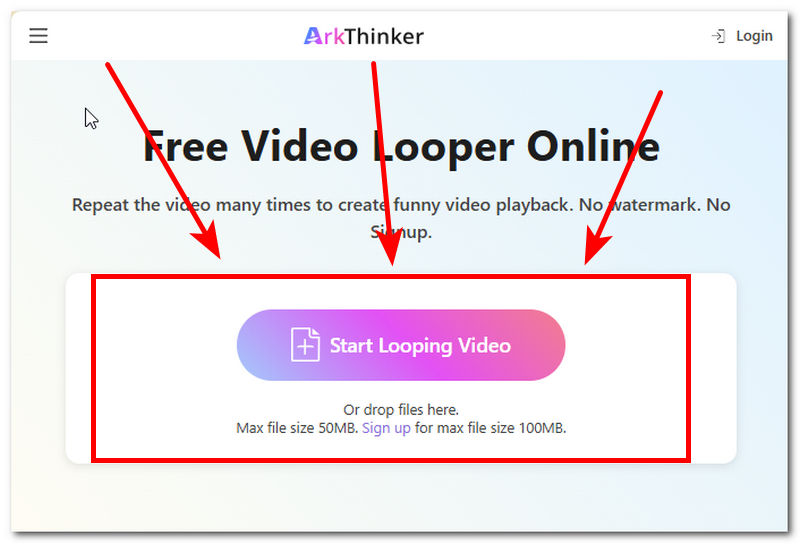
From ArkThinker’s webpage, load the video file you want to loop with and have an actual downloadable copy from your Mac device by clicking on the Start Looping Video button.
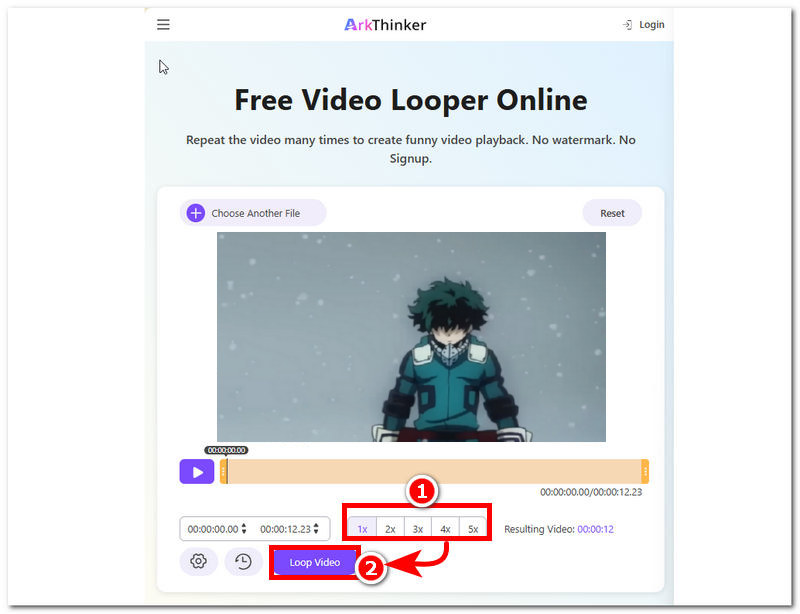
Once your video is loaded into the tool, you may select the number of loops you want your video file to have, then click the Loop Video button to start the process. Once done, your video will be saved as a looping video from your macOS device, which you can access and play anytime.
Part 4. FAQs about QuickTime Video Looping
Can I loop QuickTime video to only a specific part?
No, QuickTime Player doesn’t have a feature that lets users loop a specific part of a video file. It is just a straight-up video file player with a basic looping function.
Why is my QuickTime video not looping?
When a video doesn’t loop in QuickTime, it may be because the loop setting is disabled. If the problem persists after enabling the loop setting, you may close the player and reopen it.
Can I save a video as a looped file in QuickTime?
No, QuickTime Player does not save video as a loop; users can only loop while playing the video within the program. Thus, it doesn’t have a feature to save or export videos in a loop.
Conclusion
This article has explored different methods for looping video in QuickTime, including a menu-based method and a shortcut key method. The default method in QuickTime is a straight-up process, so it is easy to do; however, it comes with limitations that may not appeal to others. That’s why, in search for a video looping solution,n the article also features an alternative video looper tool to QuickTime Player, so that macOS users can still loop their videos and have an actual copy of their video loop in their Mac.
What do you think of this post? Click to rate this post.
Excellent
Rating: 4.9 / 5 (based on 595 votes)


