


Loop Video in VLC Media Player: Default & Online Method
VLC Media Player is a free and open-source multimedia player designed to play a wide range of media files, including audio and video, for smoother, hassle-free video playback. Developed by the VideoLAN Project, it is a widely known and used media player that supports a wide range of file formats and offers basic playback settings, such as video looping. There are tons of ways to make a video play in a loop without user intervention, and one of these methods is using the VLC media player's loop video feature.
This article will show users detailed steps for looping videos in VLC using three methods, as well as how to use an online video looper tool, so users have all the means to loop their videos, whether through VLC or an online tool.

- GUIDE LIST
- Part 1. How to Loop Video in VLC Media Player
- Part 2. How to Loop Video Online
- Part 3. FAQs about How to Video Loop on VLC Media Player
Part 1. How to Loop Video in VLC Media Player
Method 1: Basic Loop
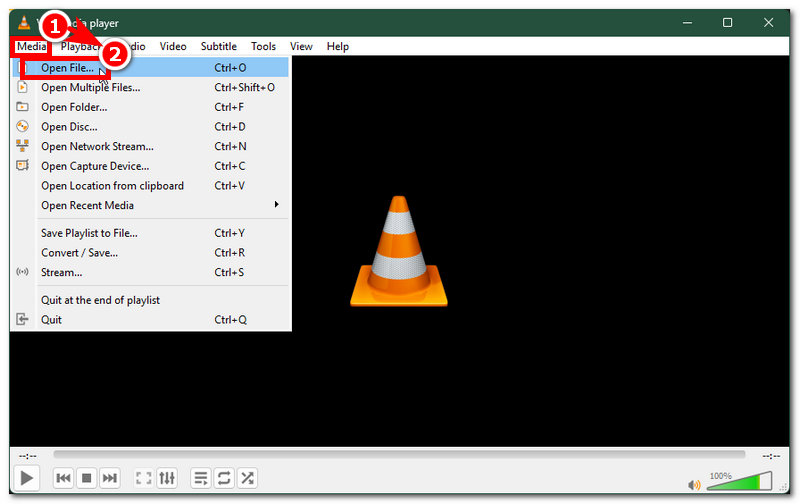
Open your VLC Media Player on your desktop device, and from its main interface, go to the Media menu section situated on the upper-left corner of the media player, and from the extended menu, click on the Open File to open the video clip you want to loop within the VLC Media Player.
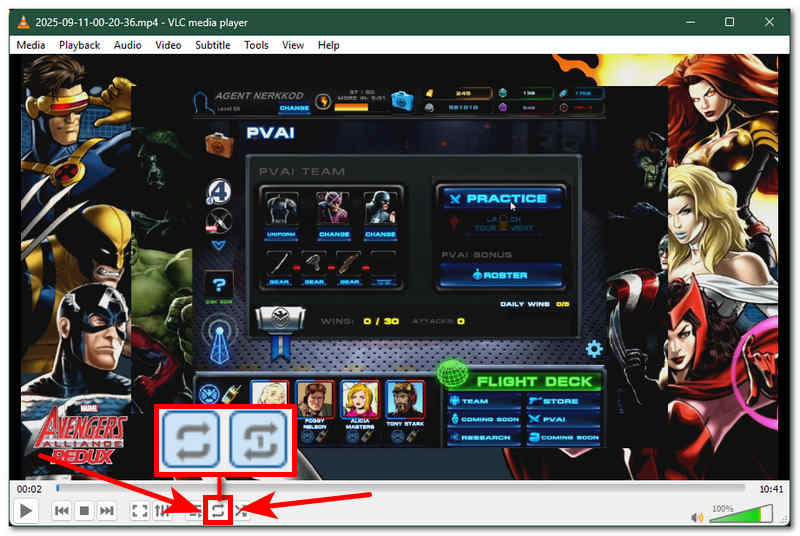
Once the video is loaded in the VLC Media Player, to access and perform the basic loop from the main controller, simply go to the lower part of your VLC Media Player. From there, you will see all the basic controls for your video playback.
Locate the Loop Icon. It is the one that has two arrow lines circling around to each other pertaining to the 'Loop'.
One click of the Loop icon will enable the 'Loop All', meaning your video clip will loop non-stop until you close the VLC Media Player. Click twice on the Loop icon, and a 1 number that will appear on the icon means the 'Loop Once' pertaining to your video clip will only loop once, and after that it will stop looping.
Method 2: Loop Specific Segment
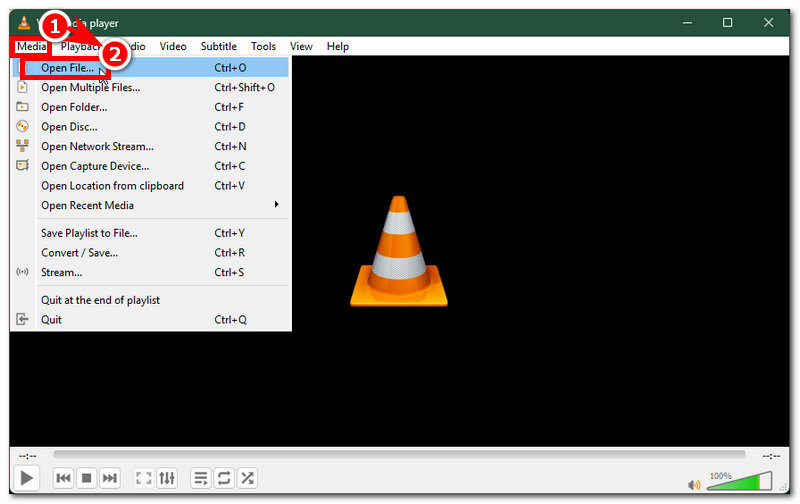
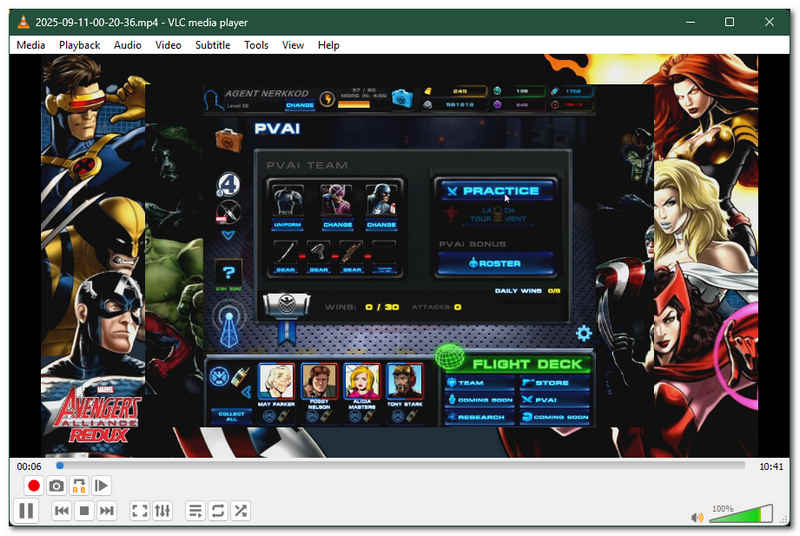
Open your VLC Media Player on your desktop device, and from your main interface, add the video file you want to loop in a specific segment by clicking on the Open File button under the Media menu section situated in the upper-left corner of your VLC Media Player screen.
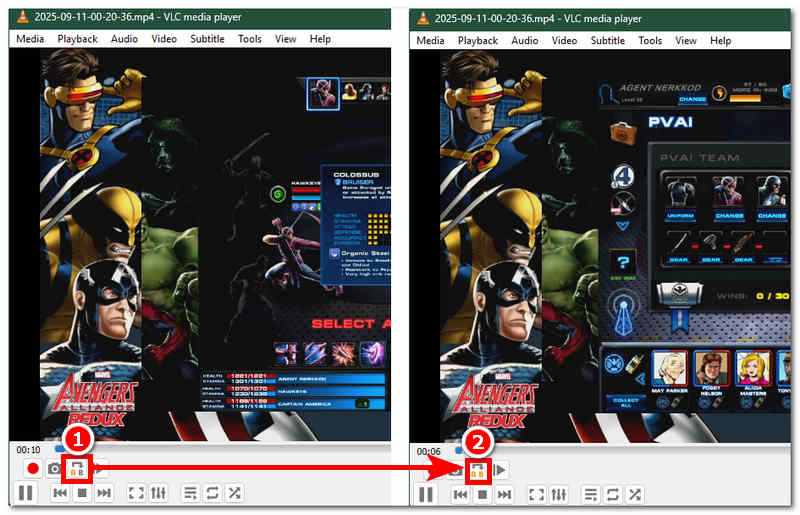
To access and enable the feature that will allow your video to loop in a specific segment, you must first click on the View situated in the menu section above your media player screen. From there, click on the Advanced Controls, and the Loop Specific segment button will appear in your video playback control panel.
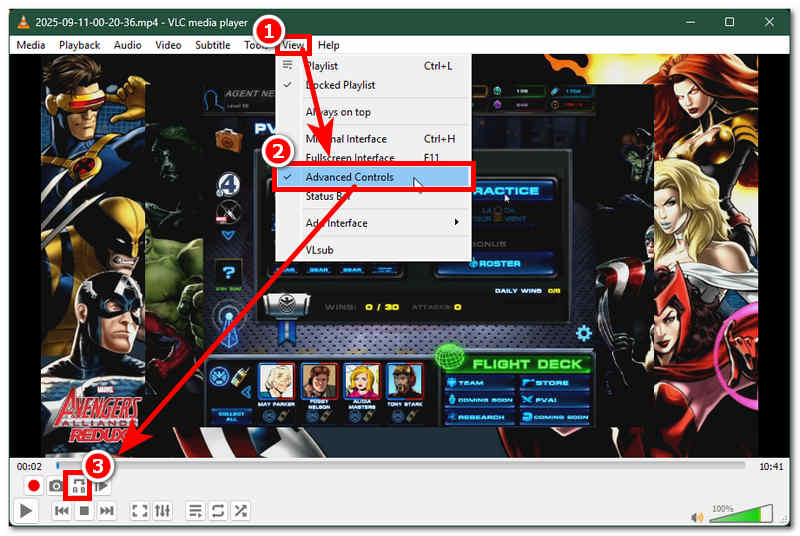
To enable looping in a specific segment, click the advanced loop icon until the A glows for the start and B for the end, defining the exact video portion to loop. Click once again until the B glows, which will serve as your loop end. After that, the video will continuously loop in those parts that you specifically marked, indicating that you successfully managed to perform a loop on a specific segment of your video clip.
Method 3: Command Line Loop
To perform a VLC loop video command line, the user should first open the command prompt through the Windows menu search bar.
Once your command prompt is open, enter the file location of your VLC Media Player and the video clip you want to command loop with the command of '--loop'.
"C:Program FilesVideoLANVLC lc.exe" --loop "C:path oyour ideo.mp4"
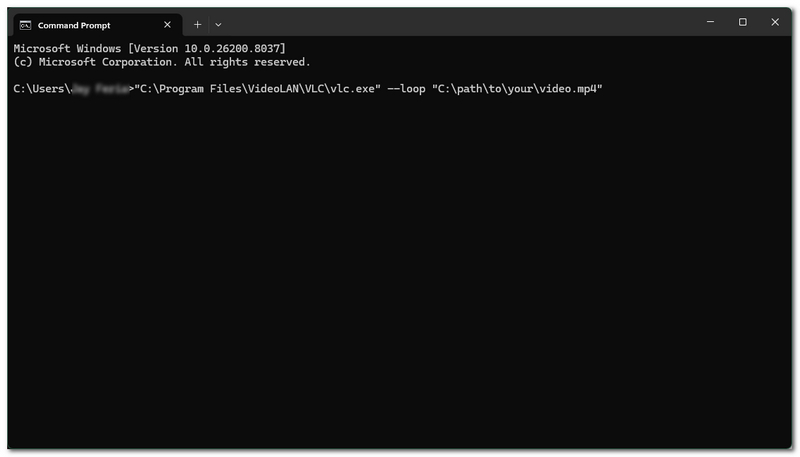
Hit the Enter button on your keyboard to launch the command prompt and see for yourself how it will perform looping by only using a command prompt.
Take Note: The file location of your VLC Media Player and video file varies from user device; what this method has is just an example of what to put as a command in your command prompt. Hence, the command will not work if you put the wrong command in it.
Part 2. How to Loop Video Online
If you find the VLC player loop video quite taxing or time-consuming, you might like this alternative method: the Arkthinker Free Video Looper Online. This free-to-use web-based video clip looper is an easy-to-access tool; users only need to visit its webpage to access its video looper features.
Unlike VLC Media Player, which requires installation, ArkThinker’s free online looper allows users to loop videos in just a few clicks. Moreover, it is fast to process a video loop, allowing users to set the number of loops for their video clip, making it an ideal web-based video loop tool.
How to use ArkThinker Free Video Looper Online
Open your device's web browser and go to the ArkThinker Free Video Looper Online official website to access the video looper tool.
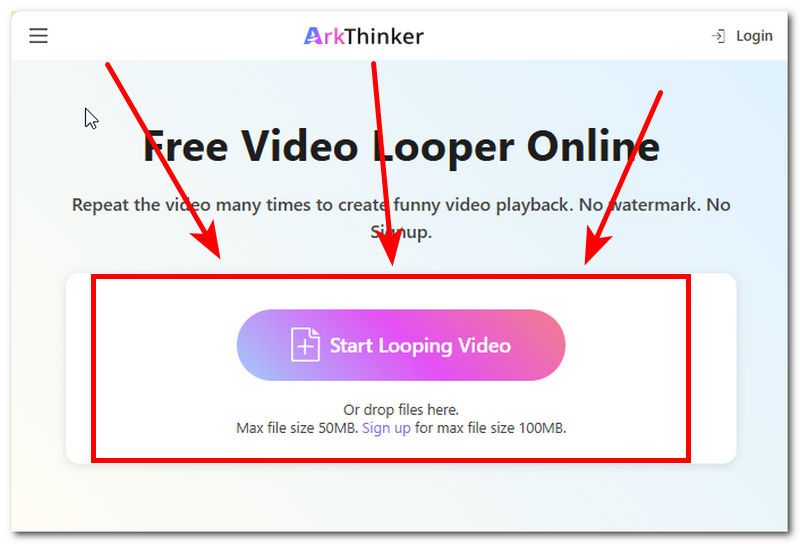
From ArkThinker’s webpage, load the video clip you wish to loop with by clicking on the Start Looping Video button, which is visible from its main interface. From there, select your video file and wait for your video to finish uploading to the tool.
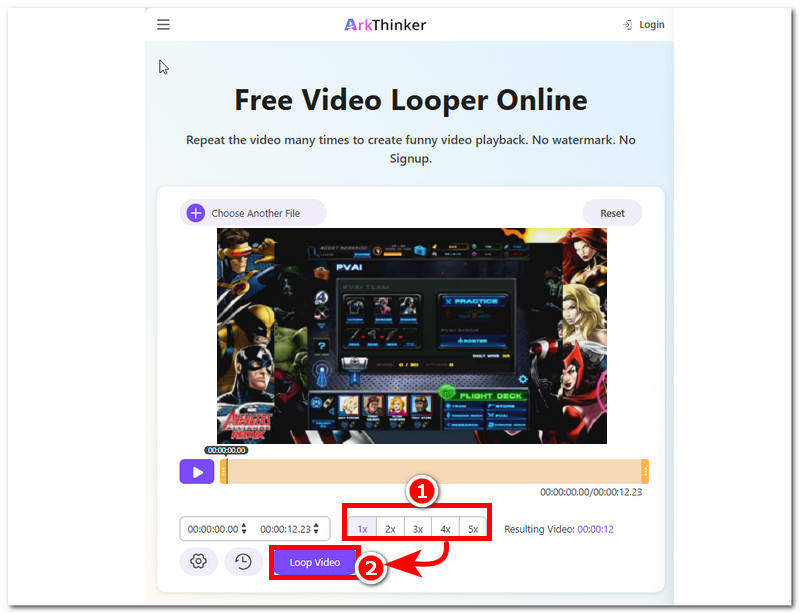
Once your video is loaded into the tool, select the number of loops you want, then click the Loop Video button to start the process.
Part 3. FAQs about How to Video Loop on VLC Media Player
Does VLC support looping videos on mobile?
Yes, both versions of VLC Media Player for mobile (Android and iOS) support looping. This can be done by tapping the screen while the video is playing, or from the playback control bar, ther user should tap the loop icon to loop their video effectively.
Is there a shortcut key to loop video in VLC player?
No, there are currently no shortcut keys to enable video looping in VLC Media Player at the time of writing this article. The loop icon is already in the video playback control bar, which is easily accessible. A shortcut key isn't necessary; users can loop the video by clicking the loop icon.
Will VLC looping affect video quality?
No, looping video footage in a media player like VLC will not affect or degrade the video's quality, as the purpose of video looping is to play it repeatedly. Thus, video quality is out of the question.
Conclusion
This article discussed how to play a video to loop in VLC media player through listing detailed steps in three ways, which consist of basic video looping, looping of a specific segment of the video, and even command line loop. Altogether they make a great feature and option of how user may do looping of their videos in using VLC Media Player but for those who doesn’t like having that extra steps looping via a web-based tool is also possible like the Arkthinker which makes it convenient as it is fast to process videos and it does not require user to install a program to fully utlize its video looping features.
What do you think of this post? Click to rate this post.
Excellent
Rating: 4.9 / 5 (based on 581 votes)


